CSP Account Registration
This topic describes how to:
Register a CSP account
-
Select the CSPs tab in the Numbering system.
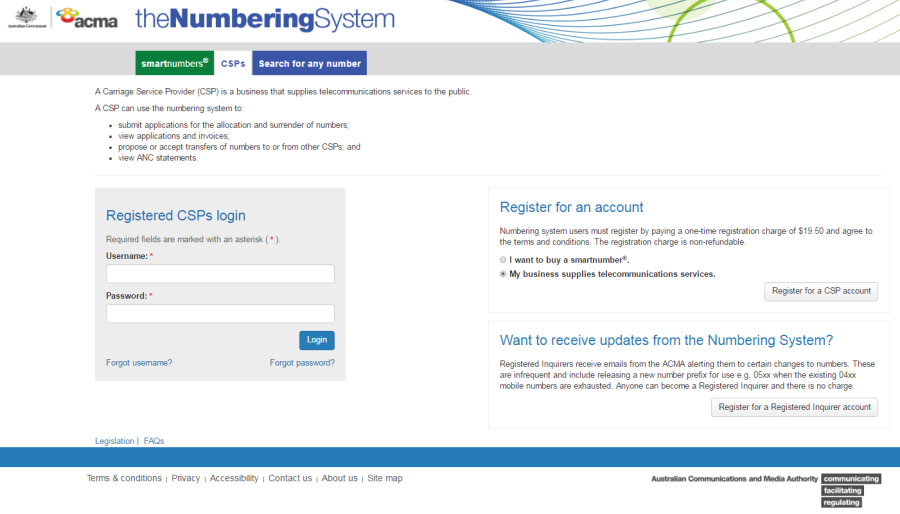
-
Select 'My business supplies telecommunications services.' and Click on Register for a CSP account.
The 'Account application — Carriage service provider (CSP)' page will display.
Note: If you wish to register a smartnumber account, please select 'I want to buy a smartnumber.'.
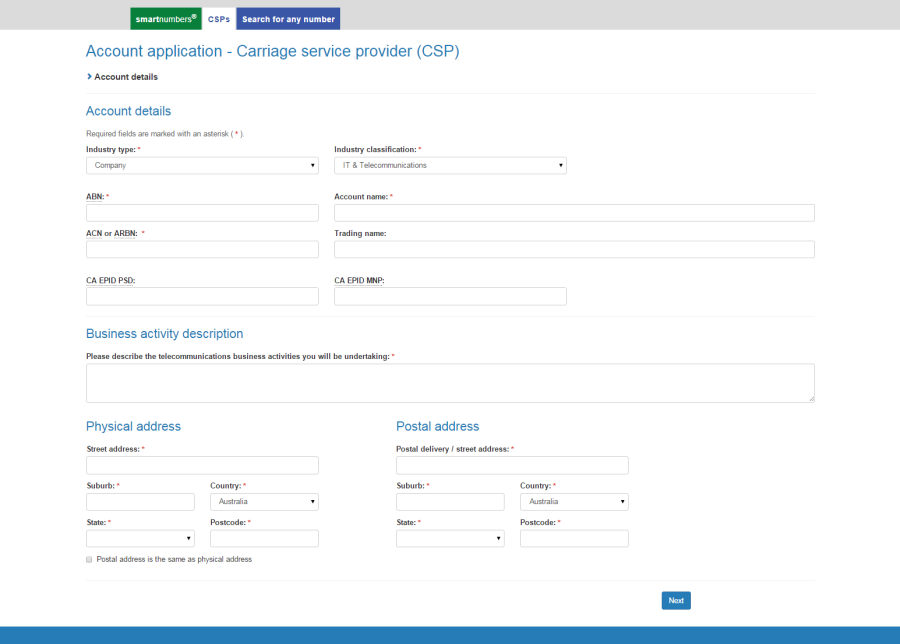
Account details
-
Select a description from the Industry type dropdown menu. Company is the default selection.
-
Select a classification from the Industry classification dropdown menu.
-
Type the account ABN (if applicable) in the ABN box and type the ACN or ARBN (if applicable) in the ACN or ARBN box.
-
Type the account name in the Account name box and type the account trading name (if applicable) in the Trading name box.
-
Optionally type CA EPID PSD in the CA EPID PSD box.
-
Optionally type CA EPID MNP in the CA EPID MNP box.
Business activity description
-
Describe the telecommunications business activities you will be undertaking in the Business Activity description box.
Physical address
-
Enter your address details.
Postal address
-
Tick the Postal address is the same as physical address check box if they are the same, or enter your postal address details if they are different.
-
Click Next. The 'Administrator details' page will display.

Administrator details
-
Enter the account administrator title, first name and surname.
-
Enter the account administrator email address(es).
-
Enter the account administrator contact phone numbers.
-
Type a secret question in the Secret question box.
-
Type the answer in the Secret answer box.
-
Click Next. The 'Acknowledgements' page will display.
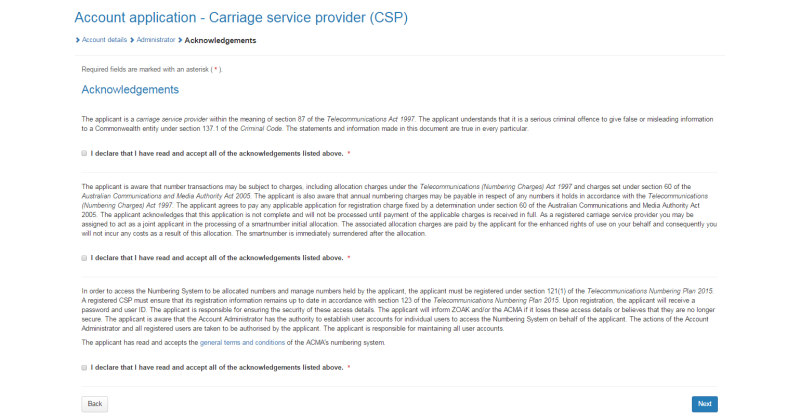
Acknowledgements
-
You are required to read and accept the terms and conditions under Acknowledgements by ticking the three checkboxes.
Note: If you need to alter details click on Back and make changes as required.
-
Click Next. The 'Pay for your registration' page will display.
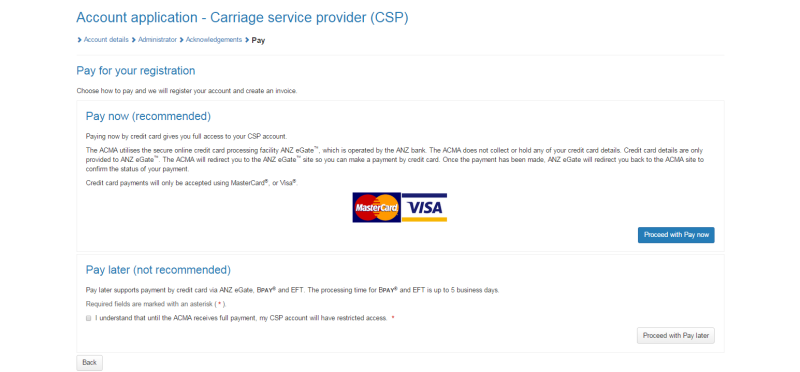
You have two options:
Pay now
-
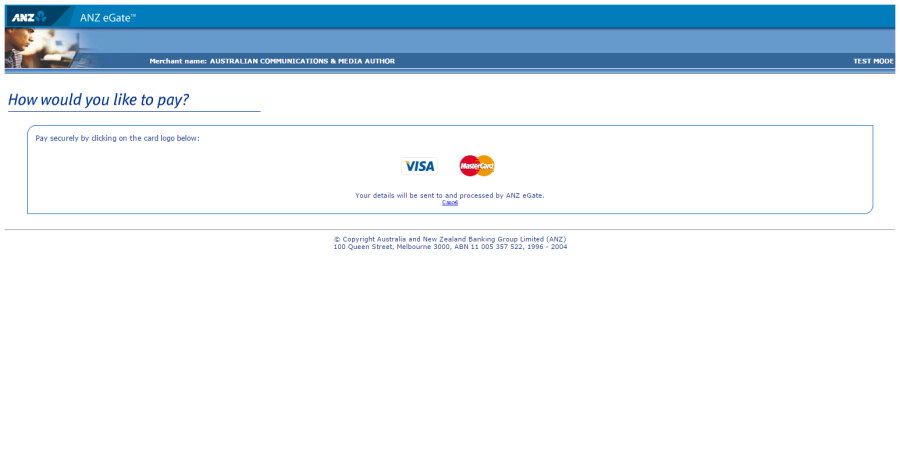
Click on Back to cancel paying, or click on Proceed with Pay now in the 'Pay for your registration' page. The ANZ eGat payment gateway will display.
-
Click on the appropriate credit card logo (VISA or Mastercard).
-
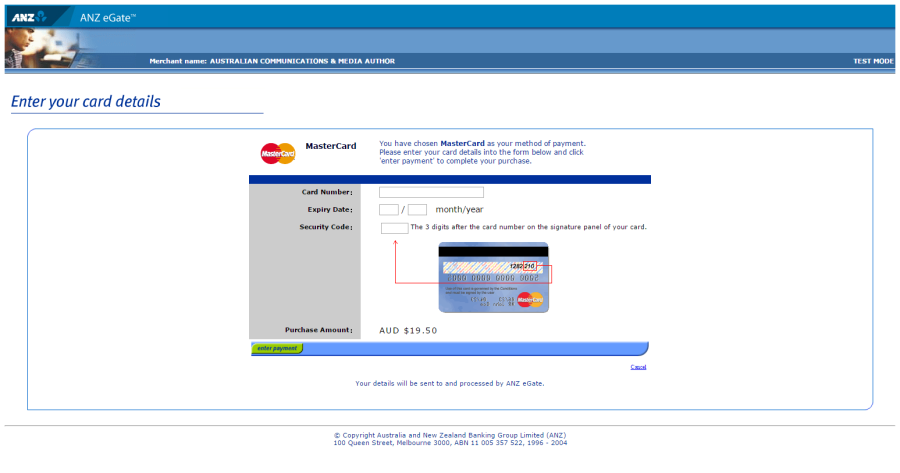
Enter your credit card number, expiry date and security code.
-
Review your purchase amount.
Note: If you want to cancel the credit card payment, click on Cancel — you will be redirected from the ANZ eGate to the Numbering system.
Your CSP account will be created however you will have limited access to your account until full payment is received.
You will receive two emails containing your username and temporary password. Use these to login and select theFinance tab to access your invoice so that you can access the payment options again.
-
Click on Enter payment. The ANZ eGate will process the payment.
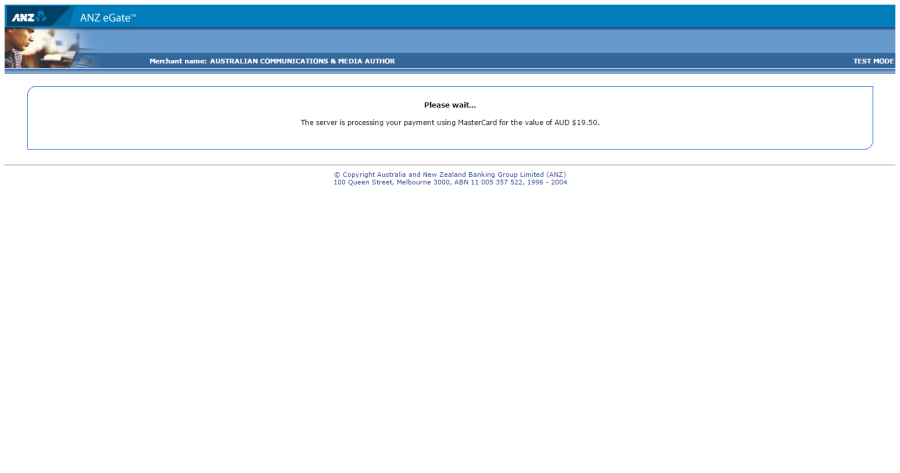
Upon payment approval, you are redirected from the ANZ eGate to the Numbering system.
Your CSP account has been created. You will be sent two emails, one containing your username and another containing your temporary password. Keep these to login to your account in the future.
Pay later
-
Tick the check box located under Pay later and click on Proceed with Pay later. The 'How to pay' page will display.
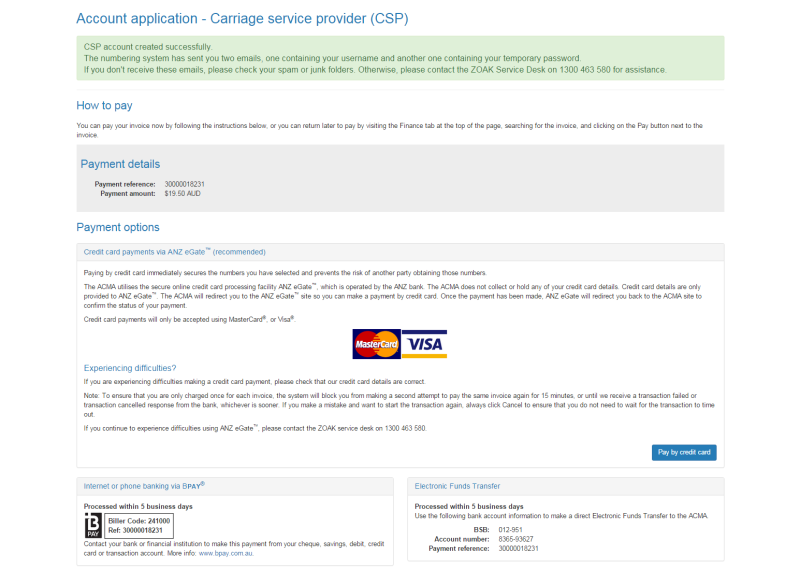
Your CSP account will be created. You will receive two emails containing your username and temporary password. Use these to login and select theFinance tab to access your invoice so that you can access the payment options again.
Note: You will have limited access to your account.
The ‘How to pay’ page provides the details for paying by BPay or Electronic Funds Transfer – these are also provided on your invoice. You can also click on Pay by credit card on the ‘How to pay’ page if you wish to pay fro your CSP account immediately (refer to Pay now above).
To Register a Registered Inquirer Account
-
Select the CSP tab in the Numbering system.
-
Click on Register for a Registered Inquirer account. The 'Account application — Registered inquirer' page will display.
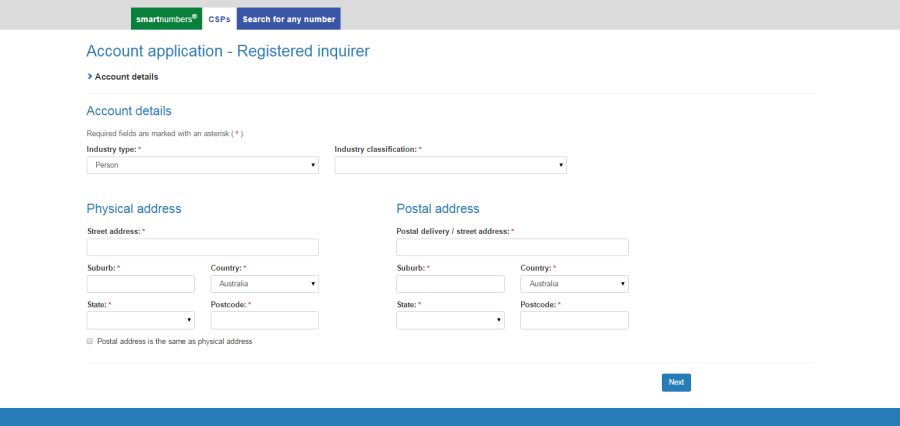
Account details
-
Select a description from the Industry type dropdown menu. Person is the default selection.
-
Select a classification from the Industry classification dropdown menu.
Physical address
-
Enter your address details.
Postal address
-
Tick the Postal address is the same as physical address check box if they are the same, or enter your postal address details if they are different.
-
Click Next. The 'Administrator details' page will display.
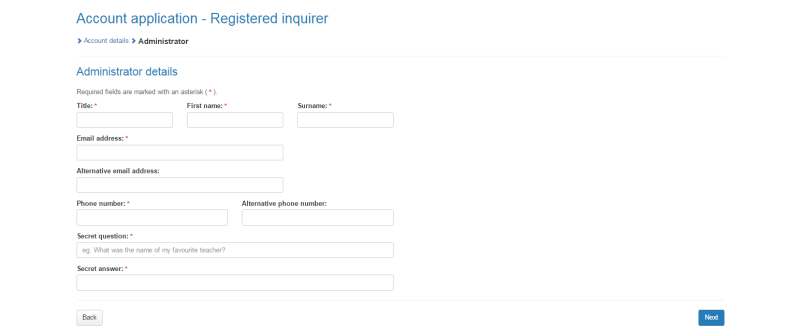
Administrator details
-
Enter the account administrator title, first name and surname.
-
Enter the account administrator email address(es).
-
Enter the account administrator contact phone numbers.
-
Type a secret question in the Secret question box.
-
Type the answer in the Secret answer box.
-
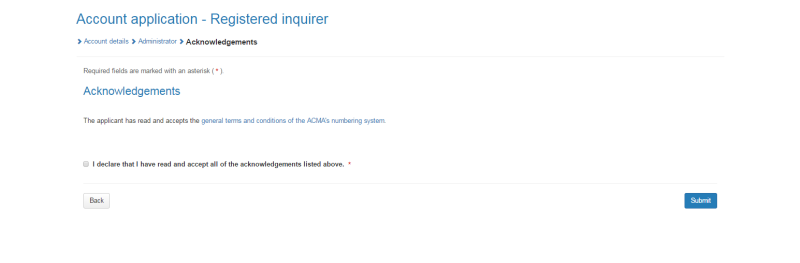
Click Next. The 'Acknowledgements' page will display.
-
You are required to read and accept the terms and conditions under Acknowledgements by ticking the checkbox.
Note: If you need to alter details click on Back and make changes as required.
-
Click Submit. The 'Account application - Registered inquirer - confirmation' page will display.
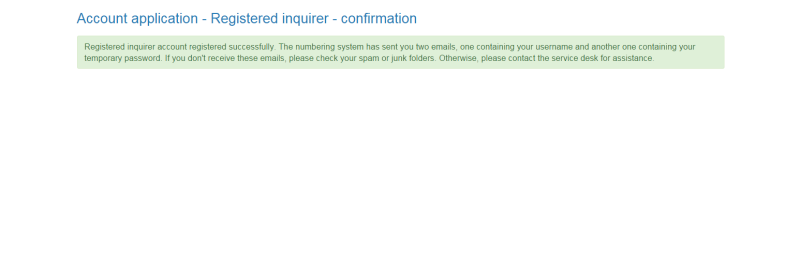
Your Registered inquirer account has now been created and you will receive two emails containing your username and temporary password.