Select the CSP tab in the Numbering system.
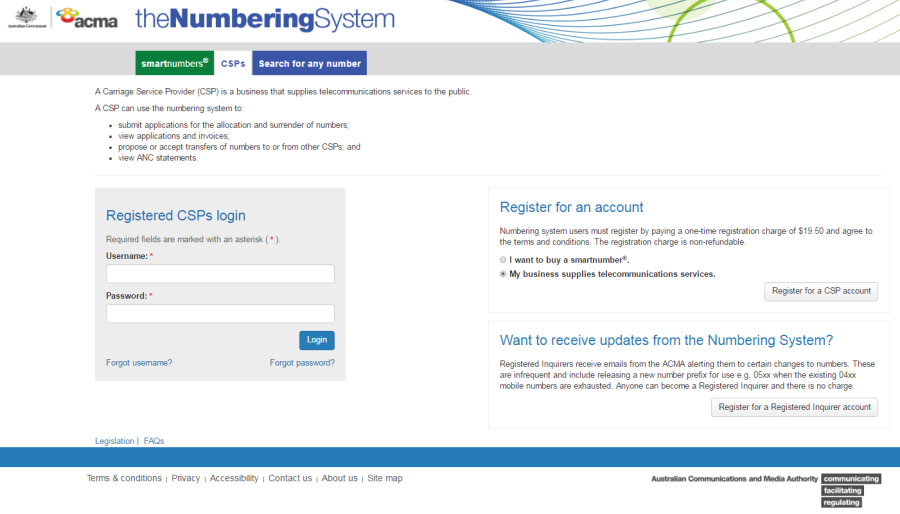
Login with your username and password in the Registered CSPs login box. The 'Dashboard' page will display.
This topic describes how to:
You will need to login as an account administrator to be able to manage any users.
If you registered the account and are the only user you are an account administrator by default.
Select the CSP tab in the Numbering system.
Login with your username and password in the Registered CSPs login box. The 'Dashboard' page will display.
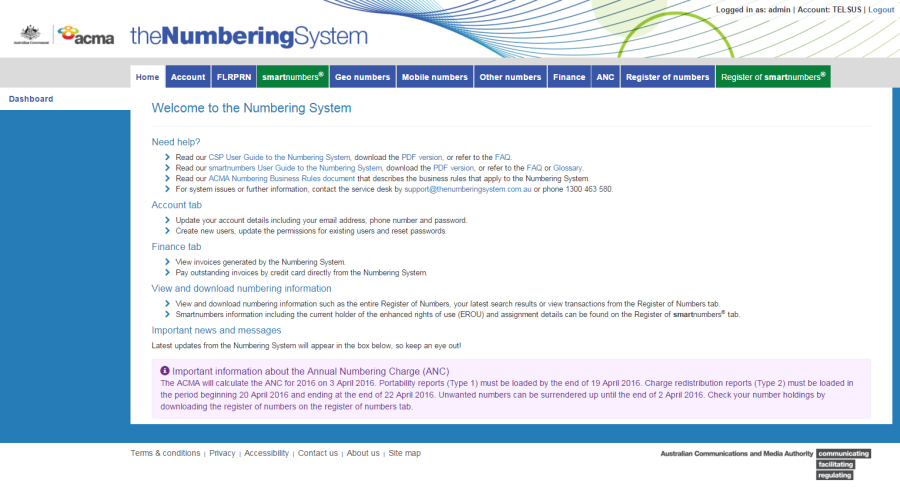
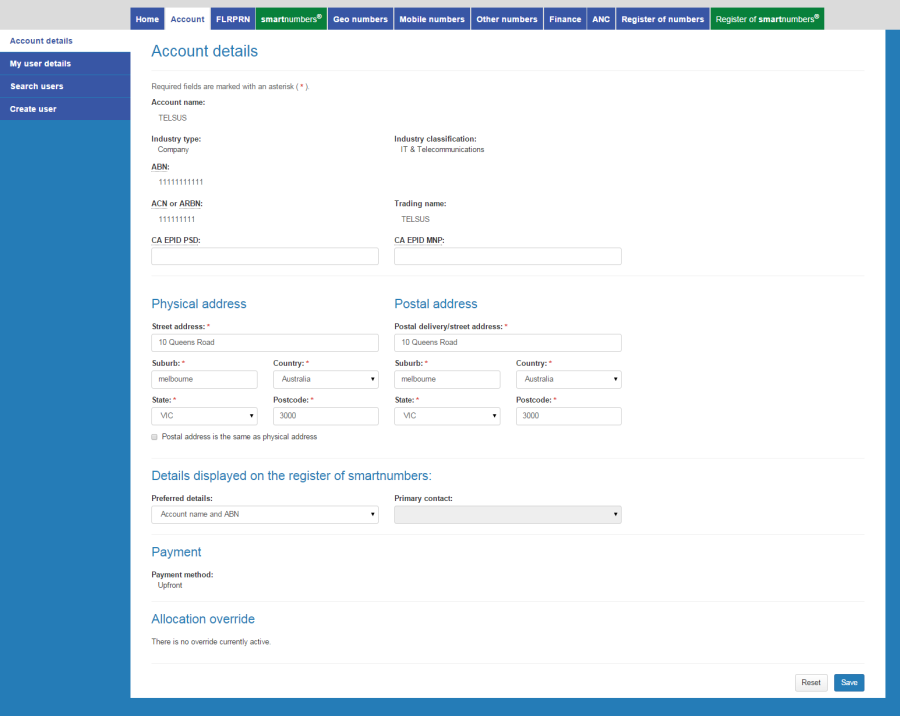
Select the Account tab. The 'Account details' page will display.
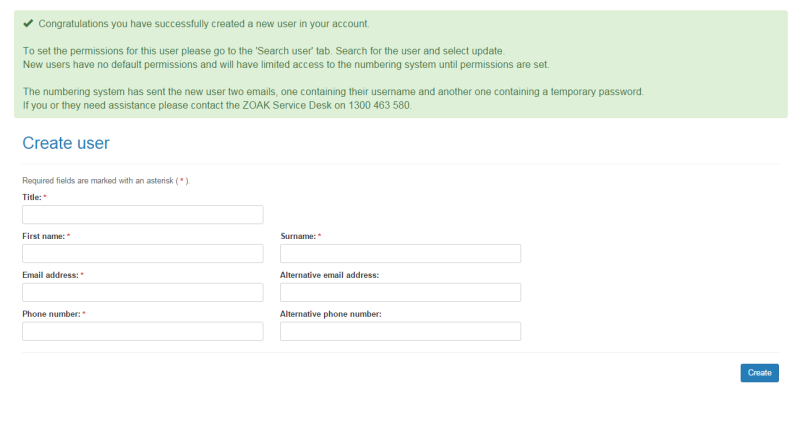
Select the Create user tab. The 'Create user page' will display.
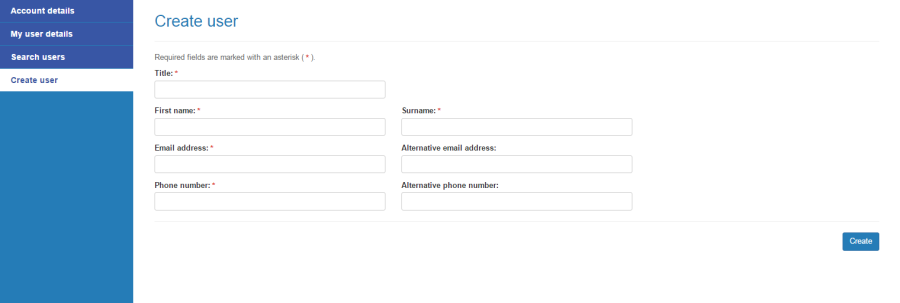
Enter the user's title, names, email addresses and phone numbers.
Click Create. The user will be created.
Select the CSP tab in the Numbering system.
Login with your username and password in the Registered CSPs login box. The 'Dashboard' page will display.
Select the Account tab. The 'Account details' page will display.
Select the Search users tab. The 'Search users' page will display.
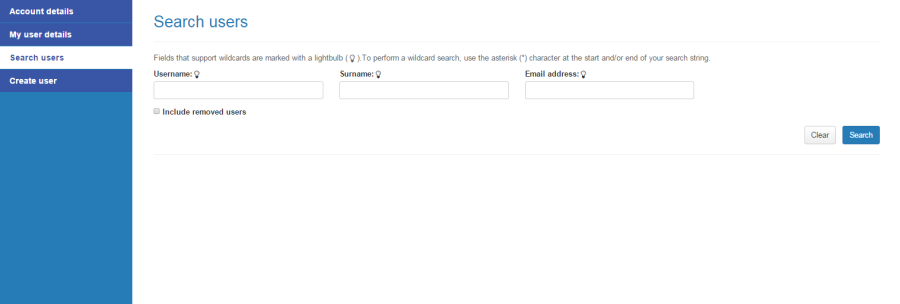
Tick Include removed users to include removed users in your search.
Enter a username, surname or email address to search or leave blank to search for all users.
Click Search. The search results will display showing account users.
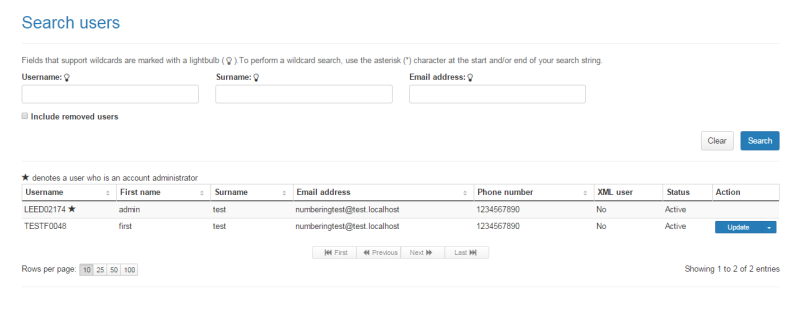
Note: An administrator is denoted with a star.
Note: If multiple rows are displayed, click on Next to navigate through them. You can also change the number of rows displayed per page to 25, 50 or 100. You can also sort by column headers.
Note: You can click Clear to redo your search.
For the user you want to update, click Update in the Action column. The 'Account user details' page will display.
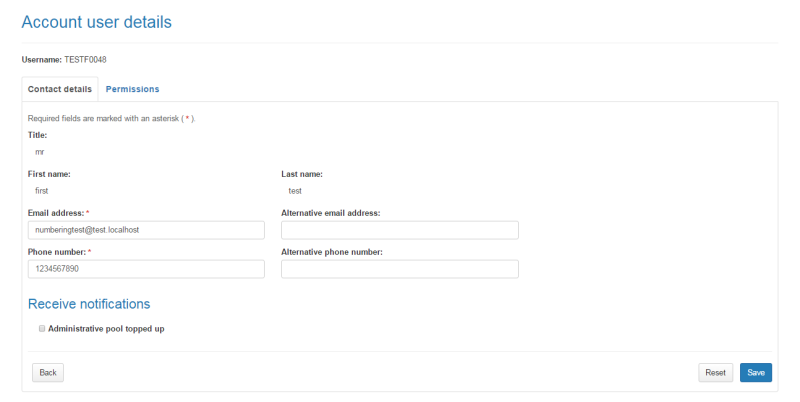
If applicable, type a new contact email address in the Email address box and an alternative in the Alternative email address box.
If applicable, type a new contact phone number in the Phone number box and an alternative in the Alternative phone number box.
Tick the Administrative pool topped up checkbox if you want to receive notification when the administrative pool is topped up.
Click Save. Your user details will be updated.
Select the CSP tab in the Numbering system.
Login with your username and password in the Registered CSPs login box. The 'Dashboard' page will display.
Select the Account tab. The 'Account details' page will display.
Select the Search users tab. The 'Search users' page will display.
Enter a username, surname or email address to search or leave blank to search for all users.
Click Search. The search results will display showing account users.
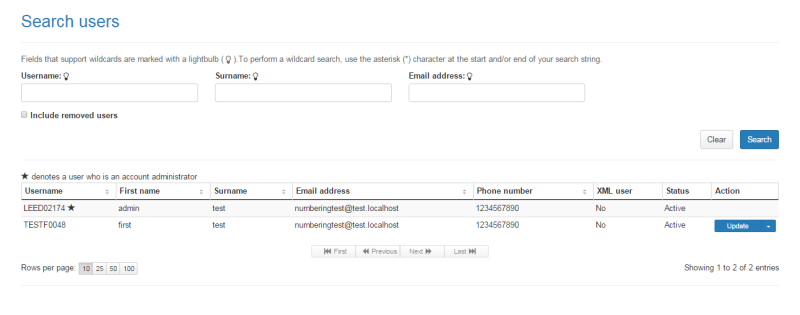
Note: An administrator is denoted with a star.
Note: If multiple rows are displayed, click on Next to navigate through them. You can also change the number of rows displayed per page to 25, 50 or 100. You can also sort by column headers.
Note: You can click Clear to redo your search.
For the user you want to reset the password for, select Reset password from the Update dropdown menu in the Action column. The 'Reset password' dialog box will display.
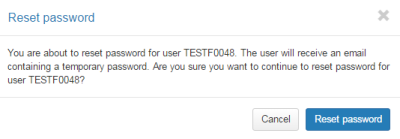
Click Reset password. The user's password will be reset.
Select the CSP tab in the Numbering system.
Login with your username and password in the Registered CSPs login box. The 'Dashboard' page will display.
Select the Account tab. The 'Account details' page will display.
Select the Search users tab. The 'Search users' page will display.
Enter a username, surname or email address to search or leave blank to search for all users.
Click Search. The search results will display showing account users.
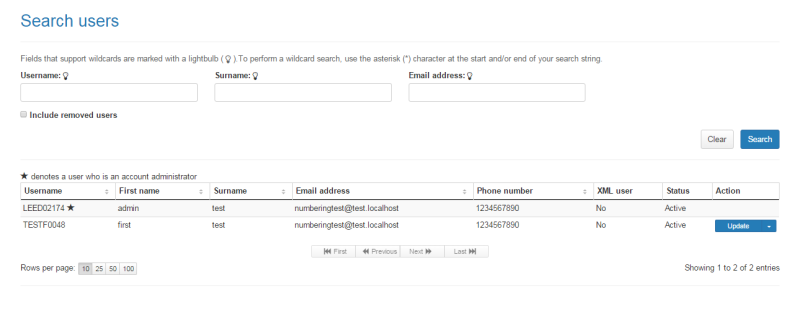
Note: An administrator is denoted with a star.
Note: If multiple rows are displayed, click on Next to navigate through them. You can also change the number of rows displayed per page to 25, 50 or 100. You can also sort by column headers.
Note: You can click Clear to redo your search.
For the user you want to remove, select Remove from the Update dropdown menu in the Action column. The 'Remove user' dialog box will display.
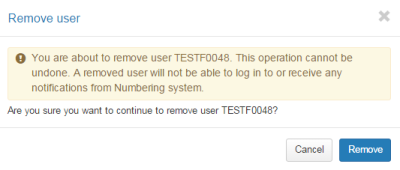
Click Remove. The user will be removed.