Select the CSP tab in the Numbering system.
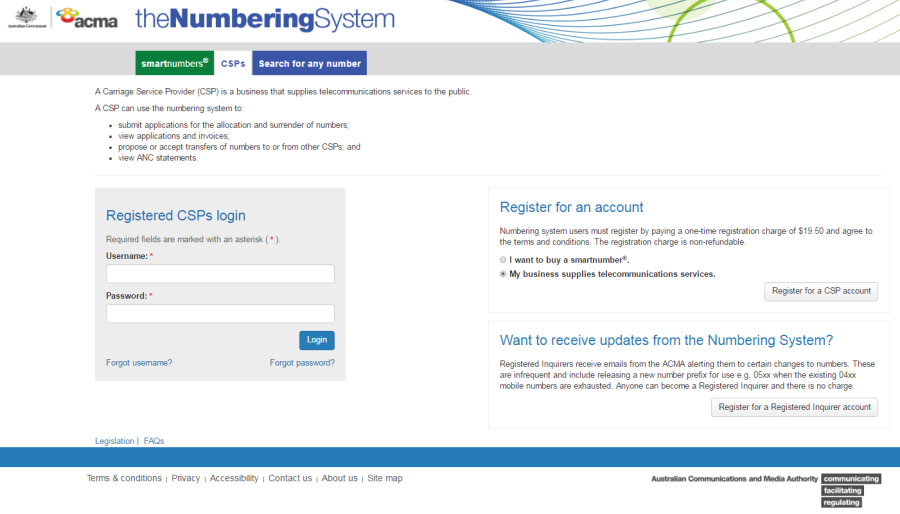
Login with your username and password in the Registered CSPs login box. The 'Dashboard' page will display.
This topic describes how to:
Managing your smartnumber account invoices received from the ACMA
Select the CSP tab in the Numbering system.
Login with your username and password in the Registered CSPs login box. The 'Dashboard' page will display.
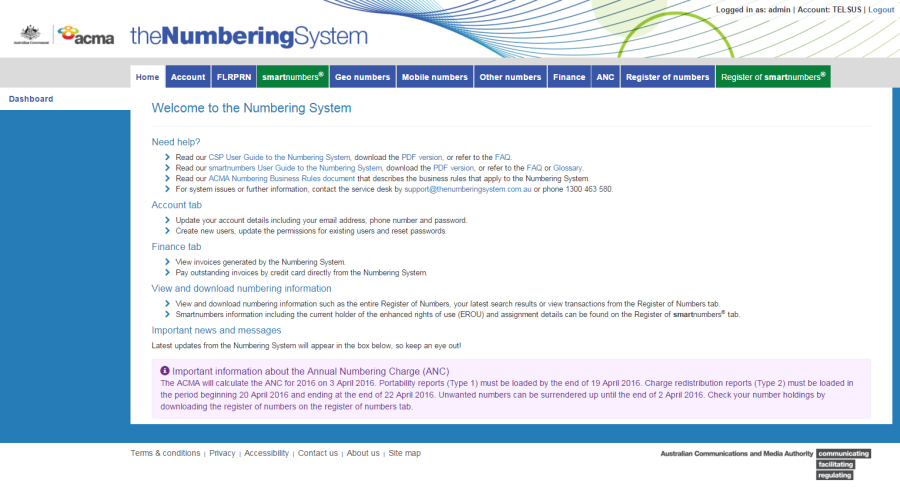
Select the Finance tab. The 'Invoices' page will display.
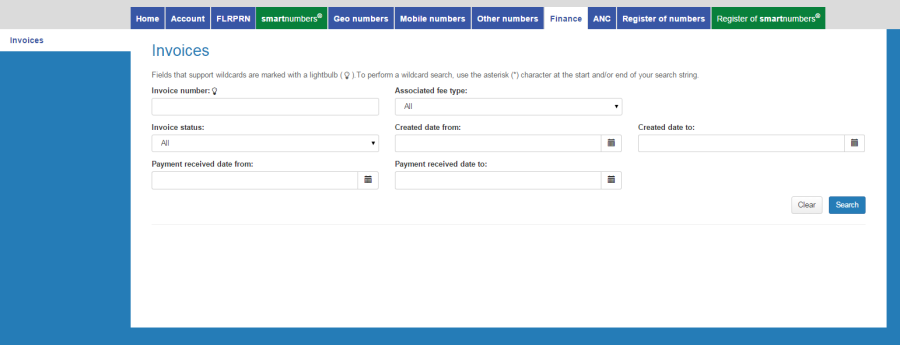
Use any combination of the following to search for invoices:
To search by invoice number (or part thereof): type the invoice number in the Invoice number box.
To search by the status of invoices (cancelled, paid, partially paid, overpaid or pending payment): select a status from the Invoice status dropdown menu.
To search by fee type associated with invoices: select a fee type from the Associated fee type dropdown menu.
To search by a date range within which invoices were created: enter the date range using the Created date from calendar and Created date to calendar.
To search by a date range within which payment received: enter the date range using the Payment received date from calendar and Payment received date to calendar.
Click on Search. The search results display the invoices with their details including payment status, due date and amount.
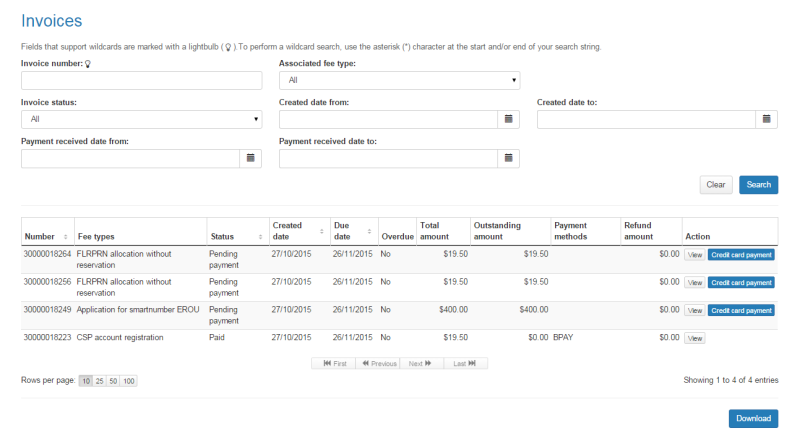
Note: If multiple rows are displayed, click on Next to navigate through them. You can also change the number of rows displayed per page to 25, 50 or 100. You can also sort by column headers.
View an invoice by clicking on View in the Action column. The invoice displays in an invoice viewer window.
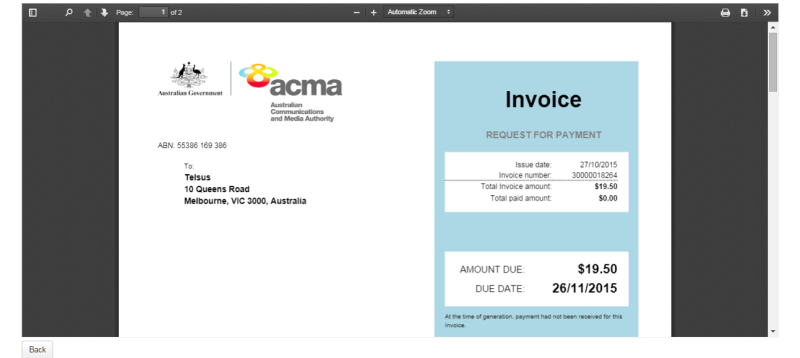
Note: The invoice viewer window enables you to search within the invoice as well as navigate pages, zoom, print and download the invoice as a PDF.
Click on Back to return to the search results.
Click on Credit card payment in the Action column. The 'Pay invoice' page will display.
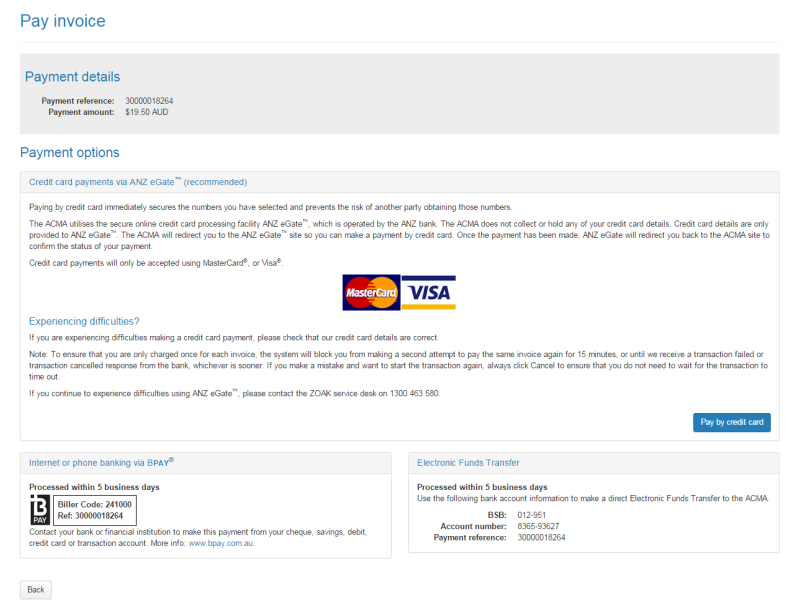
Click on Back to cancel paying, or click Pay by credit card to proceed. The ANZ Payment Gateway payment gateway will display.
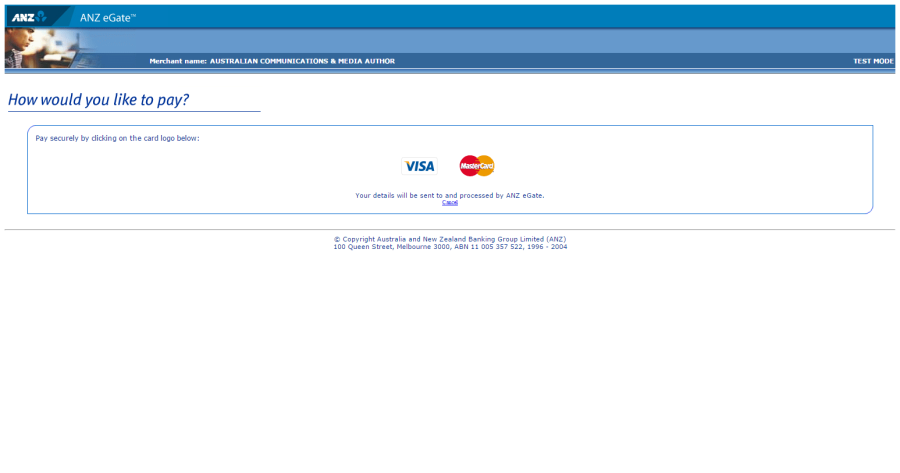
Click on the appropriate credit card logo (VISA or Mastercard).
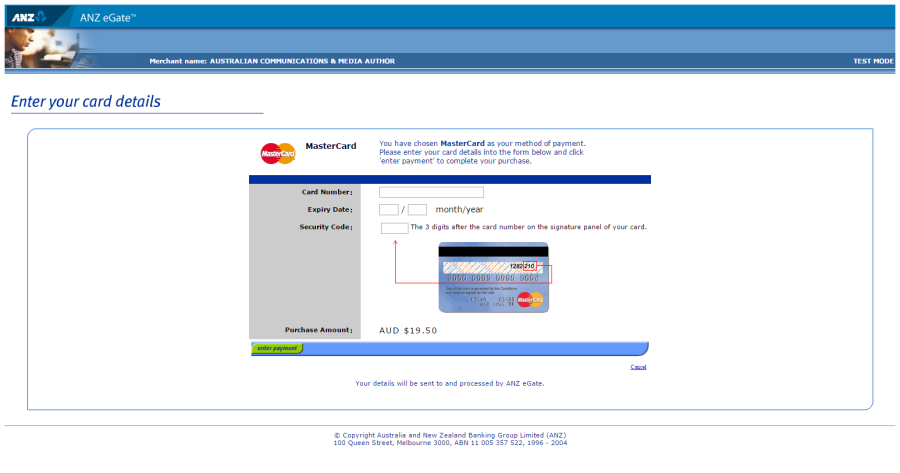
Enter your credit card number, expiry date and security code.
Review your purchase amount.
Note: Click on Cancel if you want to cancel the credit card payment — you will be redirected from the ANZ Payment Gateway to the Numbering system.
Click on Enter payment. The ANZ Payment Gateway will process the payment.
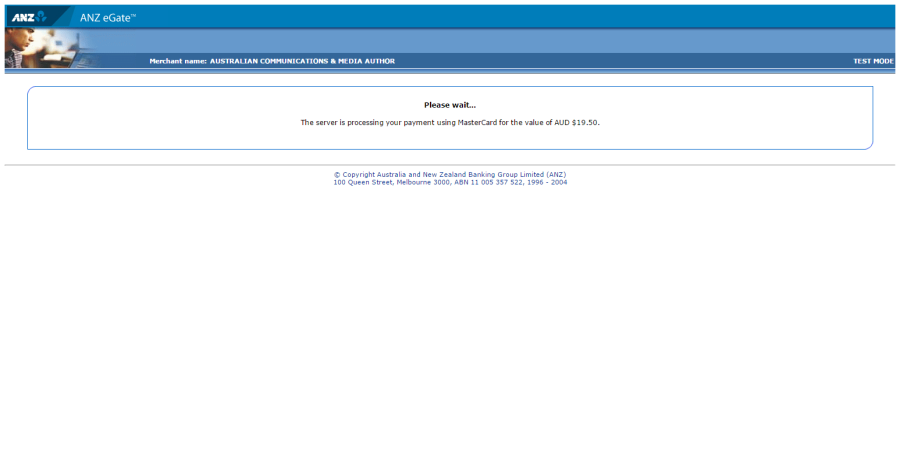
Upon payment approval, you are redirected from the ANZ Payment Gateway to the Numbering system. Your invoice will be marked as paid.