Mobile Numbers Special Allocation
This topic describes how to:
-
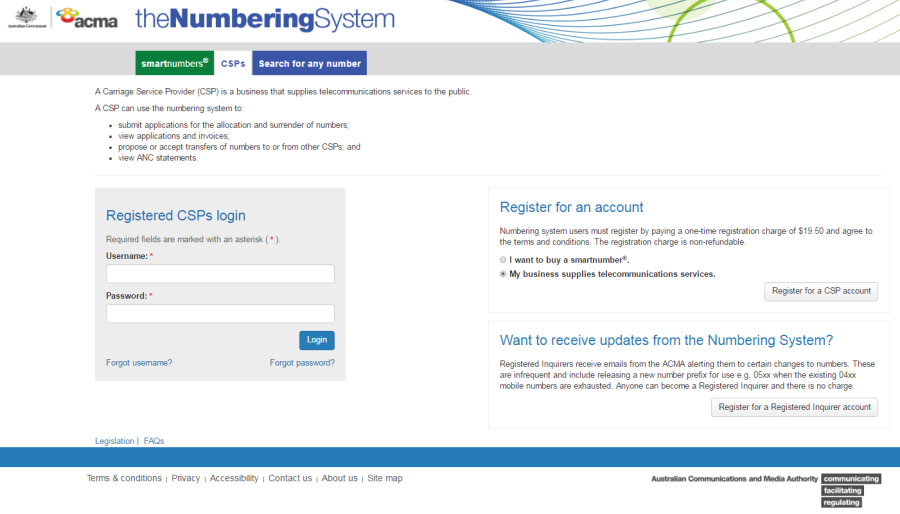
Select the CSP tab in the Numbering system.
-
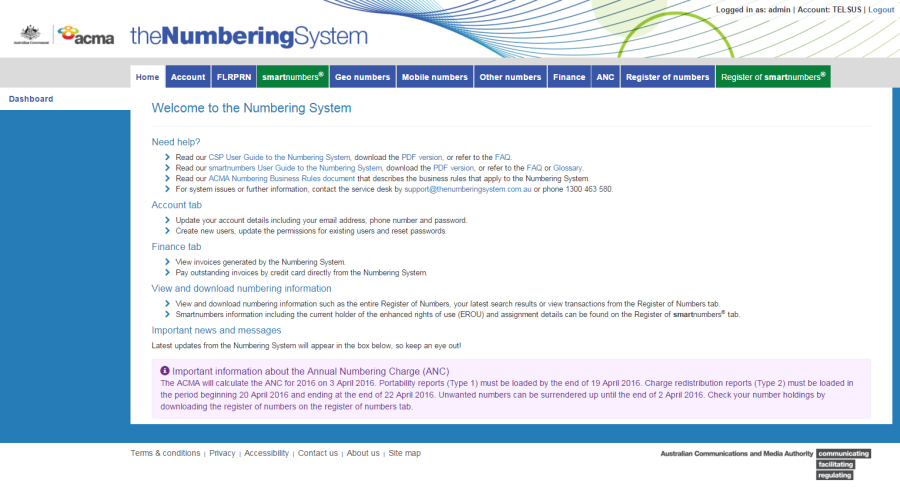
Login with your username and password in the Registered CSPs login box. The 'Dashboard' page will display.
-
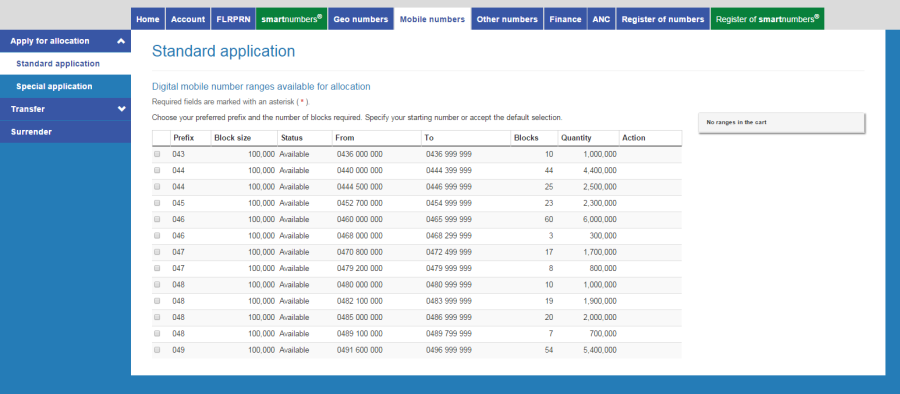
Click on the Mobile numbers tab. The 'Standard application' page will display.
-
Click on the Special application tab. The 'Special application' page will display.
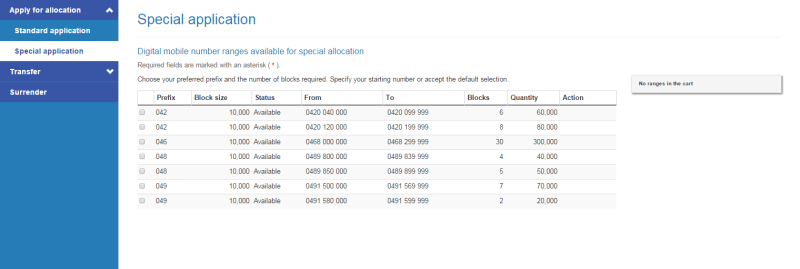
Note: The 'Special application' page lists ranges of numbers based on 3 character prefixes (040 to 049) available for special allocation. Within each range up to 1,000 blocks of mobile numbers may be available. A block contains 10,000 mobile numbers.
-
Tick the checkbox of the number range you want to apply for blocks in.
-
Enter the quantity of 10,00 number blocks you want in the Blocks column of the range. As you increase blocks, the Quantity column increases by 10,000 and the To column adjusts accordingly.
-
Click on Apply in the Action column of number blocks to apply for allocation. The number blocks are added to the cart as an Apply.
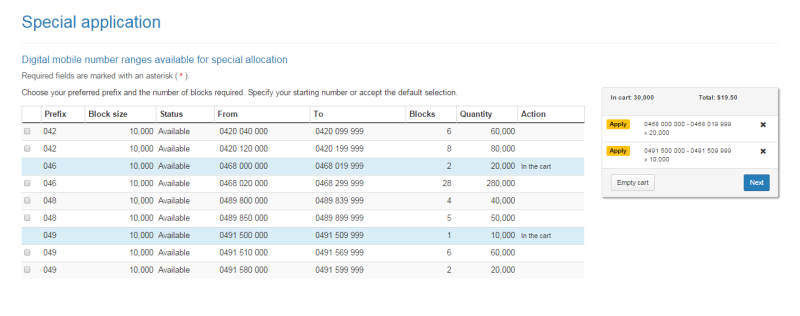
Note: Any number range blocks which are already applied for are indicated as 'Pending payment' in the Action column while those which are added to the cart are indicated as 'In the cart' in the Action column.
Note: To remove all number blocks in the cart, click on Empty cart. To remove a specific range's number blocks from the cart, click on X next to the range.
-
Click on Next. The 'Special application review' page will display.
-
Review your allocation numbers.
Note: If you need to alter details, click on Back and make changes as required.
-
You are required to read and accept the terms and conditions under Acknowledgements by ticking the checkbox.
-
Click Submit. The 'Special application confirmation' page will display.
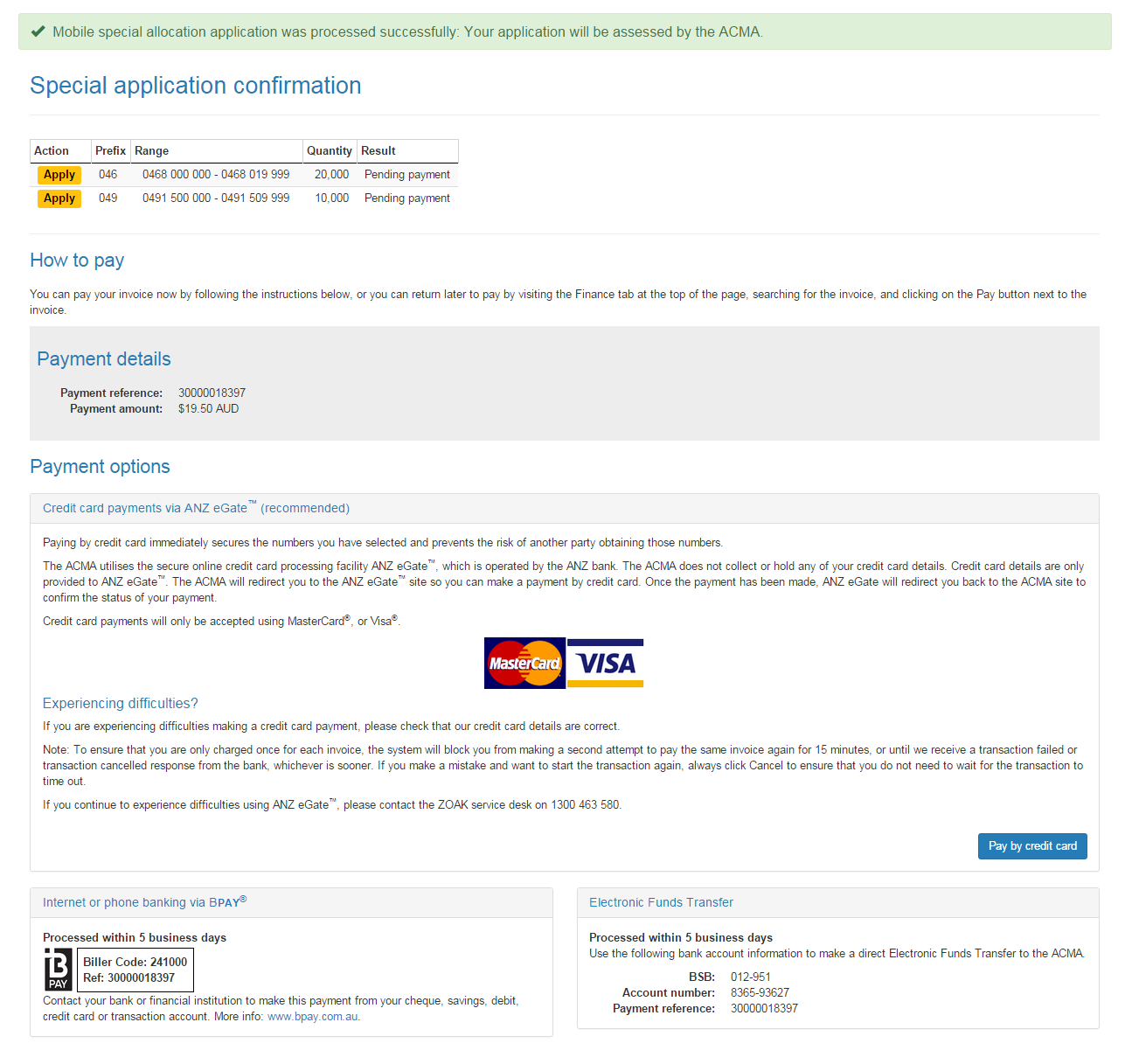
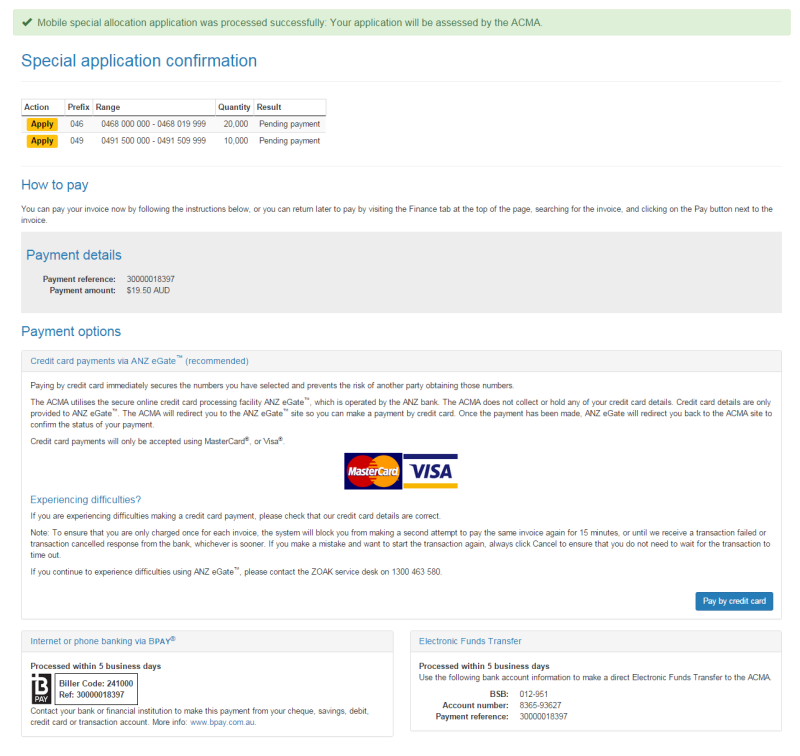
The ‘Special application confirmation’ page provides the details for paying by BPay or Electronic Funds Transfer — these are also provided on your invoice.
You can also click on Pay by credit card if you wish to pay immediately (refer to Pay now below).
When the special allocation application is paid, only then can the application undergo the ACMA audit process. When ACMA approves the application then CSPs have the numbers allocated to them. If ACMA rejects the application then the application will be cancelled and number ranges will become available again.
When an application for a number range is Pending payment or Pending approval, any other CSP can apply for the same number range and ACMA approves only one application for that number range. Any other applications applied for the same number range will be cancelled and ACMA will issue a refund for cancelled invoices.
Pay now
-
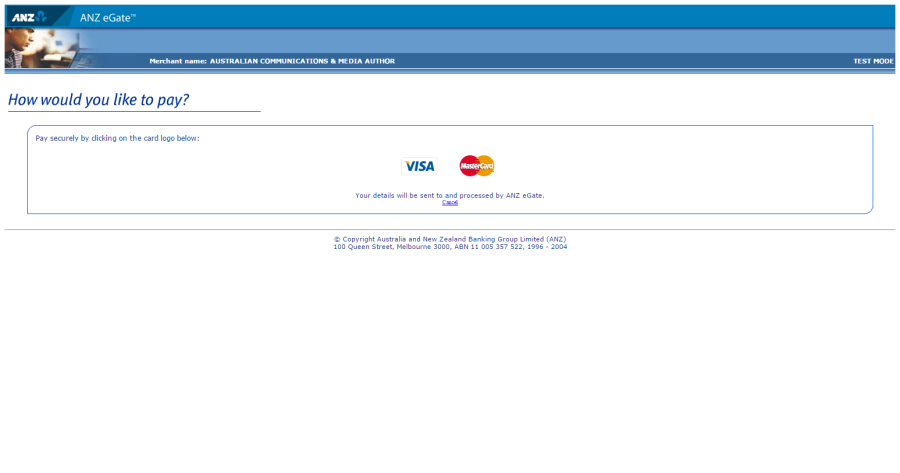
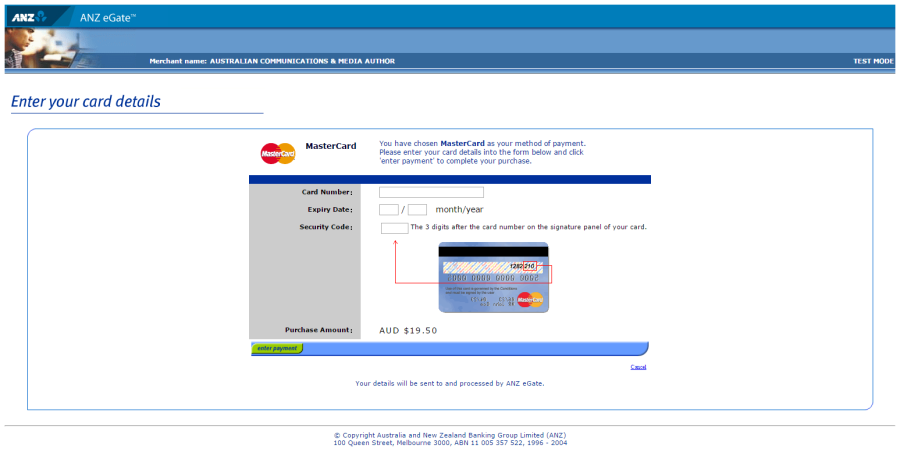
Click on Back to cancel paying, or click Pay by credit card to proceed. The ANZ Payment Gateway payment gateway will display.
-
Click on the appropriate credit card logo (VISA or Mastercard).
-
Enter your credit card number, expiry date and security code.
-
Review your purchase amount.
Note: If you want to cancel the credit card payment, click on Cancel — you will be redirected from the ANZ Payment Gateway to the Numbering system.
Login and select theFinance tab to access your invoice so that you can access the payment options again.
-
Click on Enter payment. The ANZ Payment Gateway will process the payment.
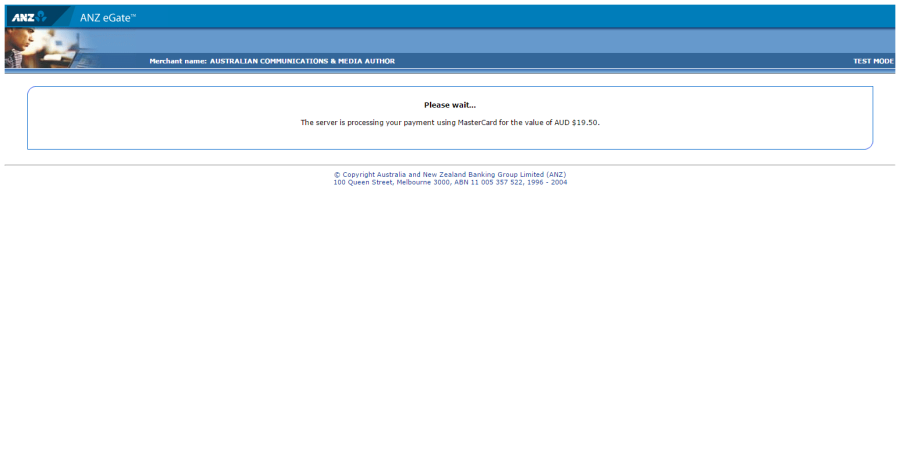
Upon payment approval you are redirected from the ANZ Payment Gateway to the Numbering system.