Mobile numbers transfer
This topic describes how to:
Create an outgoing transfer offer of mobile numbers
The following describes how to create a transfer offer to transfer selected mobile numbers.
-
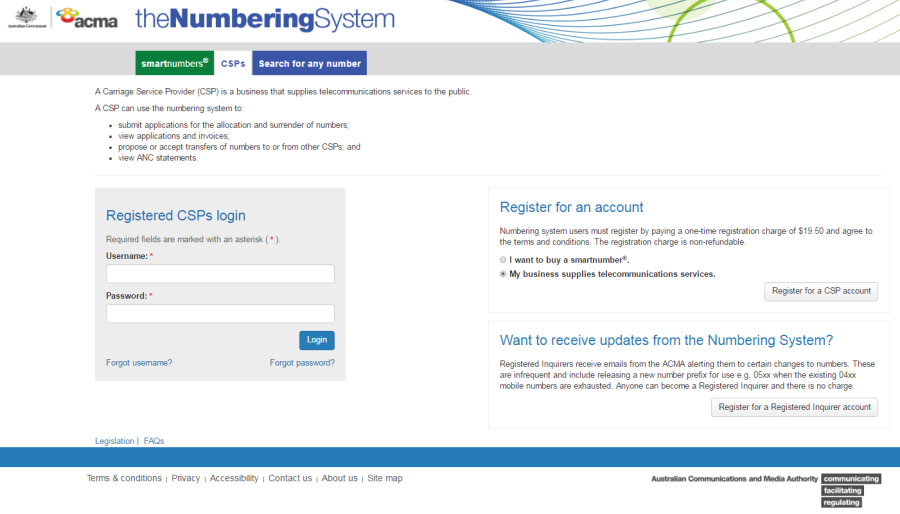
Select the CSP tab in the Numbering system.
-
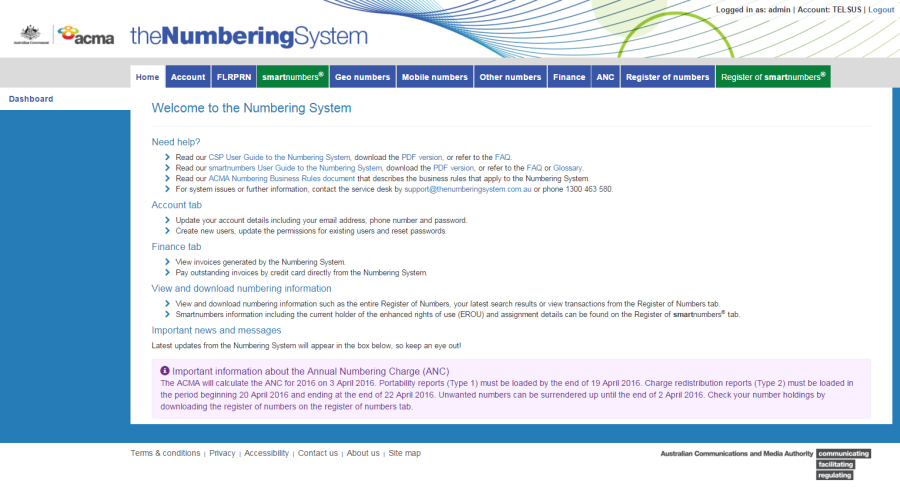
Login with your username and password in the Registered CSPs login box. The 'Dashboard' page will display.
-
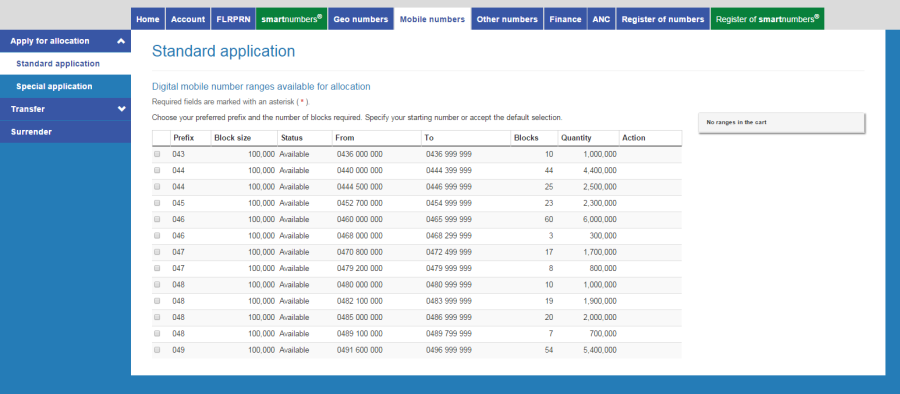
Click on the Mobile numbers tab. The 'Standard application' page will display.
-
From the Transfer tab's menu select Create offer. The 'Transfer offer' page will display.
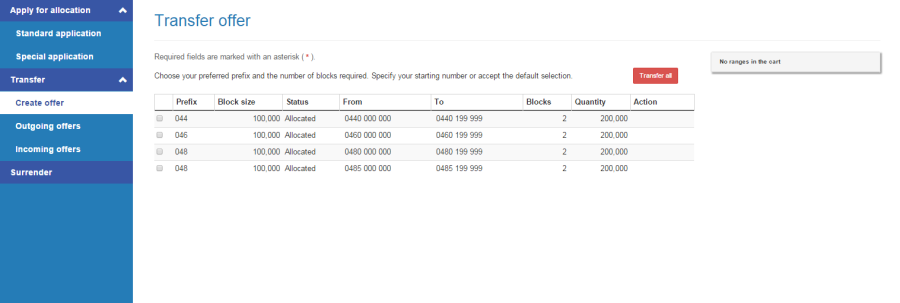
Note: The 'Transfer offer' page lists ranges of numbers. Within each range up to 100 blocks of mobile numbers may be available. A block contains 10,000 mobile numbers.
-
Tick the checkbox of the number range you want to select blocks from to surrender.
-
Enter the quantity of 1,000 number blocks you want in the Blocks column of the range. As you increase blocks, the Quantity column increases by 1,000 and the To column adjusts accordingly.
-
Click on Transfer in the Action column of number blocks to cancel them from an outgoing transfer offer. The number blocks are added to the cart as a Transfer.
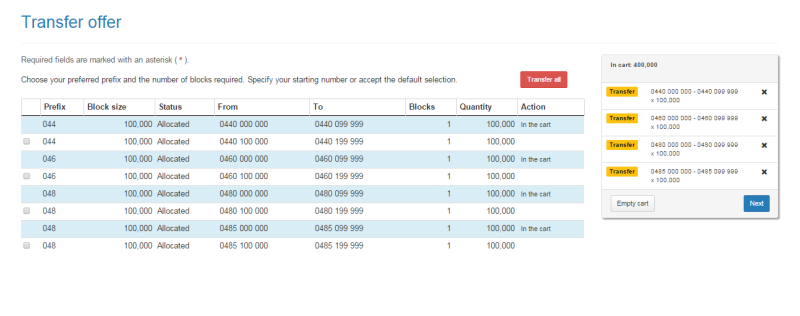
Note: To transfer all number blocks click on Transfer all.
Note: To remove all number blocks in the cart click on Empty cart. To remove specific number blocks from the cart click on X next to the number blocks.
-
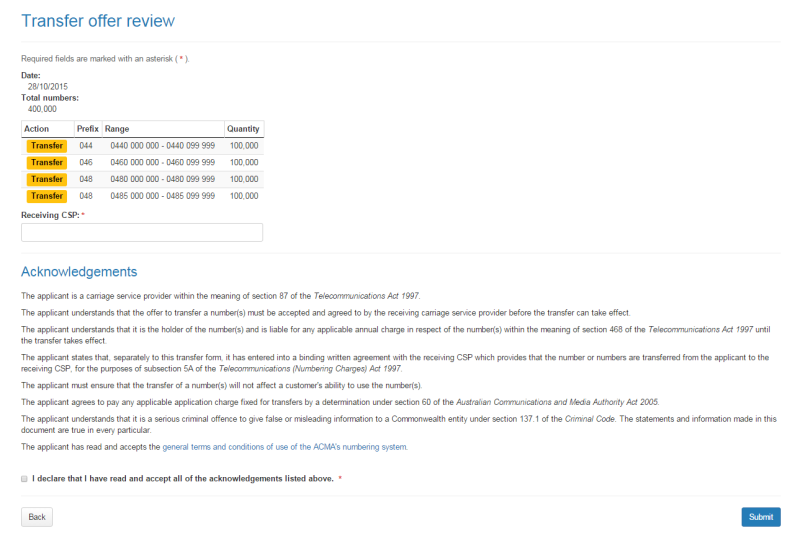
Click on Next. The 'Transfer offer review' page will display.
-
Review your transfer offer number blocks.
Note: If you need to alter details, click on Back and make changes as required.
-
Type the receiving CSP in the Receiving CSP box.
-
You are required to read and accept the terms and conditions under Acknowledgements by ticking the checkbox.
-
Click Submit. The 'Transfer offer confirmation' page will display.
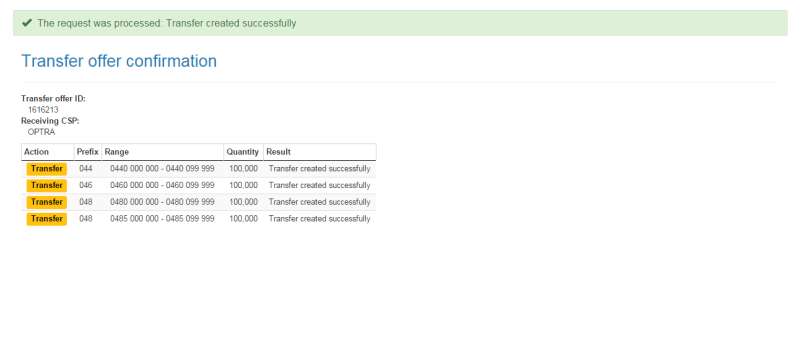
The transfer offer of the selected number blocks is created and its transfer offer ID is displayed.
Cancel outgoing transfer offer mobile numbers
The following describes how to cancel mobile numbers in outgoing trade offers.
-
Select the CSP tab in the Numbering system.
-
Login with your username and password in the Registered CSPs login box. The 'Dashboard' page will display.
-
Click on the Mobile numbers tab. The 'Standard application' page will display.
-
From the Transfer tab's menu select Outgoing offers. The 'Outgoing transfer offers' page will display.
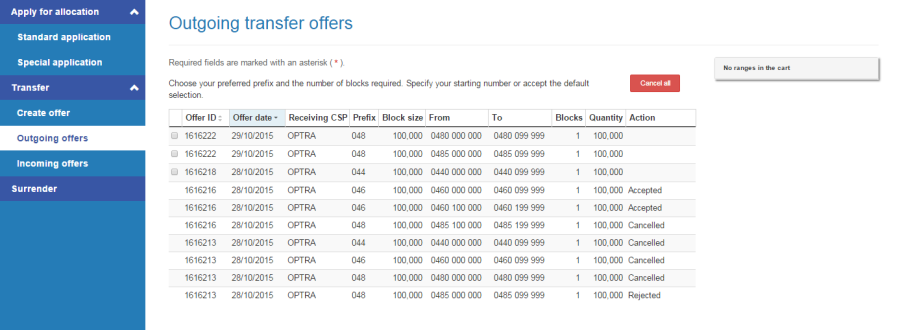
Note: The 'Outgoing transfer offers' page lists ranges of numbers. Within each range up to 100 blocks of mobile numbers may be available. A block contains 10,000 mobile numbers.
-
Tick the checkbox of the number range you want to select blocks from to cancel.
-
Enter the quantity of 10,000 number blocks you want in the Blocks column of the range. As you increase blocks, the Quantity column increases by 10,000 and the To column adjusts accordingly.
-
Click on Cancel in the Action column of number blocks to cancel them from an outgoing transfer offer. The number blocks are added to the cart as a Cancel.
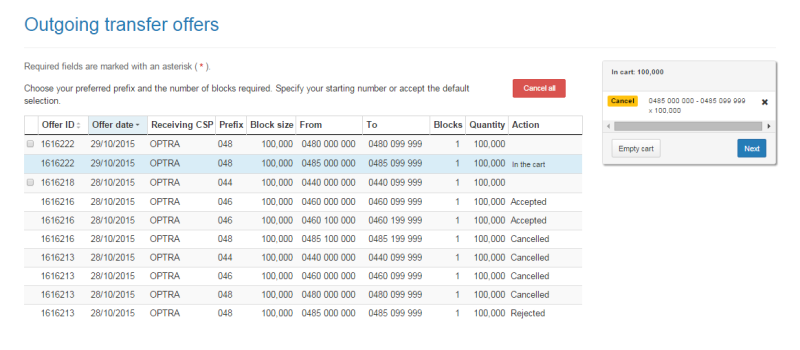
Note: To cancel all number blocks click on Cancel all.
Note: To remove all number blocks in the cart click on Empty cart. To remove specific number blocks from the cart click on X next to the number blocks.
-
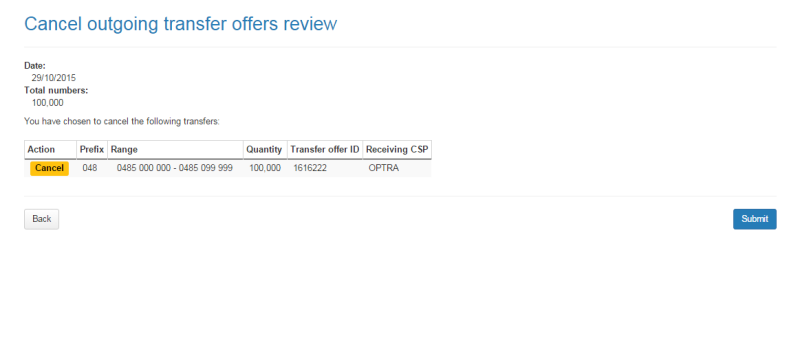
Click on Next. The 'Cancel outgoing transfer offers review' page will display.
-
Review your cancel transfer offer number blocks.
Note: If you need to alter details, click on Back and make changes as required.
-
Click Submit. The 'Cancel outgoing transfer offers confirmation' page will display.
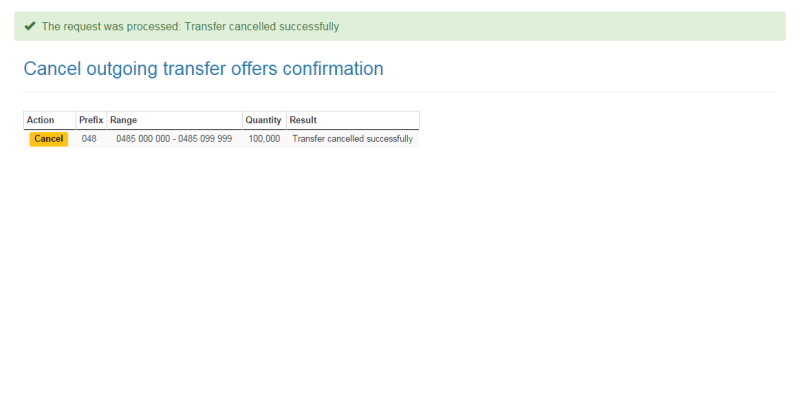
The selected number blocks are cancelled from their outgoing transfer offers. An email is sent to the gaining CSP to say that the transfer offer is cancelled for the number block ranges specified in the email.
Accept and/or reject incoming transfer offer mobile numbers
The following describes how to accept and/or reject mobile numbers in incoming transfer offers.
-
Select the CSP tab in the Numbering system.
-
Login with your username and password in the Registered CSPs login box. The 'Dashboard' page will display.
-
Click on the Mobile numbers tab. The 'Standard application' page will display.
-
From the Transfer tab's menu select Incoming offers. The 'Incoming transfer offers' page will display.
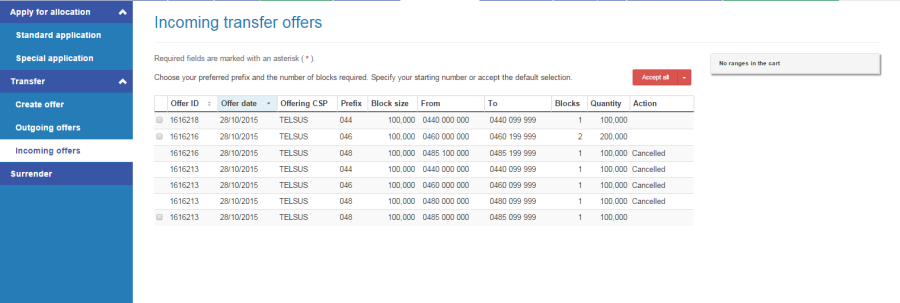
Note: The 'Incoming transfer offers' page lists ranges of numbers. Within each range up to 100 blocks of mobile numbers may be available. A block contains 10,000 mobile numbers.
-
Tick the checkbox of the number range you want to select blocks from to accept or reject.
-
Enter the quantity of 10,000 number blocks you want in the Blocks column of the range. As you increase blocks, the Quantity column increases by 10,000 and the To column adjusts accordingly.
-
Accept or reject number blocks in incoming transfer offers:
Accept
Click on Accept in the Action column of specific number blocks to accept them from their incoming transfer offer. The number blocks will be added to the cart as an Accept.
Reject
Select Reject from the Accept dropdown menu in the Action column of specific number blocks to reject them from their incoming transfer offer. The number blocks will be added to the cart as a Reject.
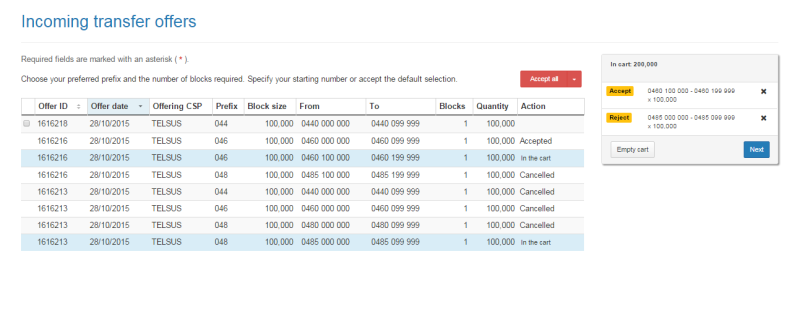
Note: To add all number blocks in the search results to the cart as Accept click on Accept all.
Note: To add all number blocks in the search results to the cart as Reject select Reject all from the Accept all dropdown menu.
Note: To remove all number blocks in the cart click on Empty cart. To remove specific number blocks from the cart click on X next to the number blocks.
-
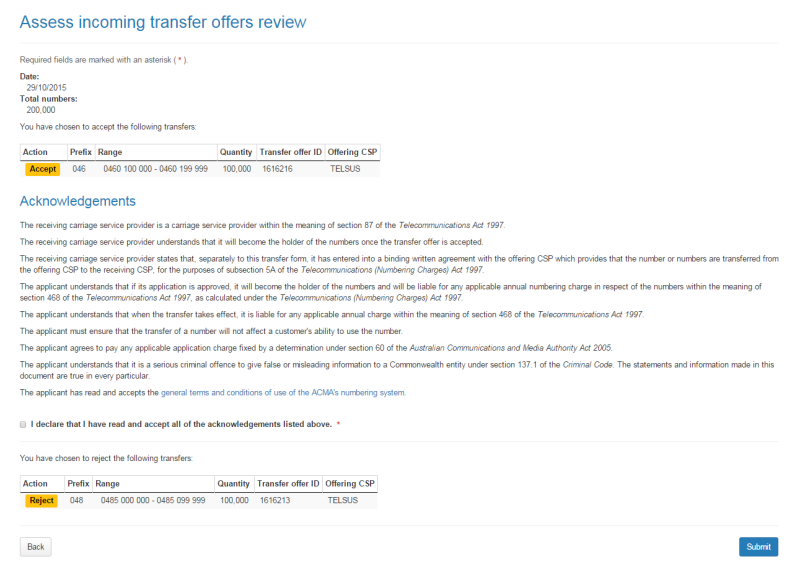
Click on Next. The 'Assess incoming transfer offers review' page will display.
-
Review your Accept and/or Reject number blocks.
-
You are required to read and accept the terms and conditions under Acknowledgements by ticking the checkbox.
Note: If you need to alter details click on Back and make changes as required.
-
Click Submit. The 'Assess incoming transfer offers confirmation' page will display.
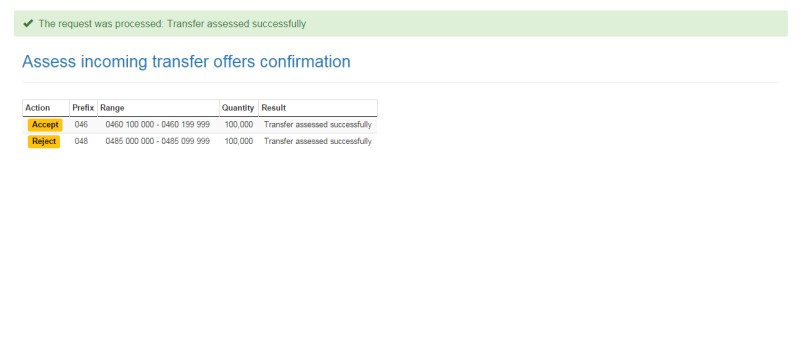
The selected Accept number blocks are accepted from their incoming transfer offer and the selected Reject number blocks are rejected from their incoming transfer offer.