Select the CSP tab in the Numbering system.
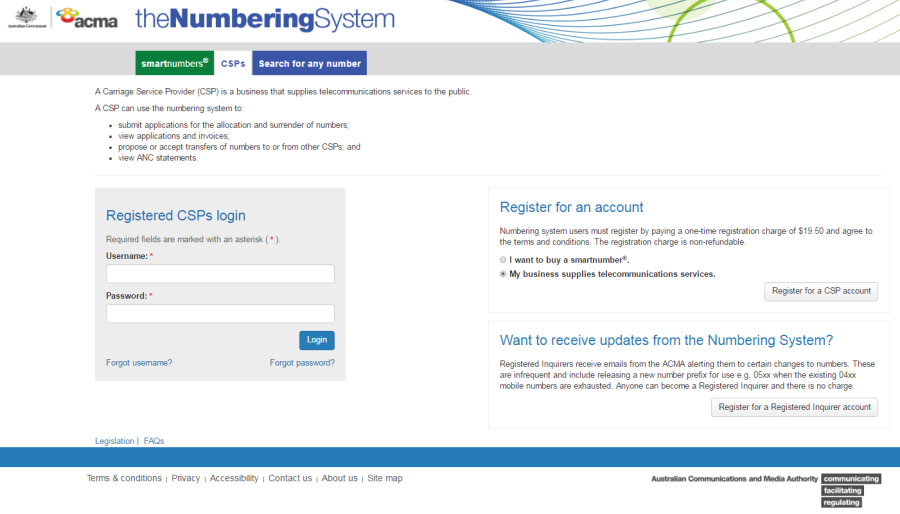
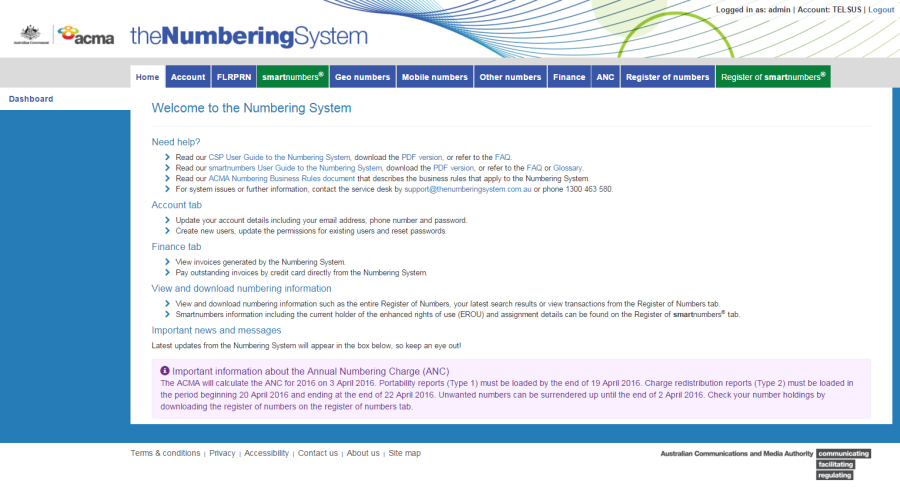
Login with your username and password in the Registered CSPs login box. The 'Dashboard' page will display.
This topic describes how to:
Buy smartnumbers.
Select the CSP tab in the Numbering system.
Login with your username and password in the Registered CSPs login box. The 'Dashboard' page will display.
Select the Buy smartnumber tab. The 'Buy smartnumber' page will display.
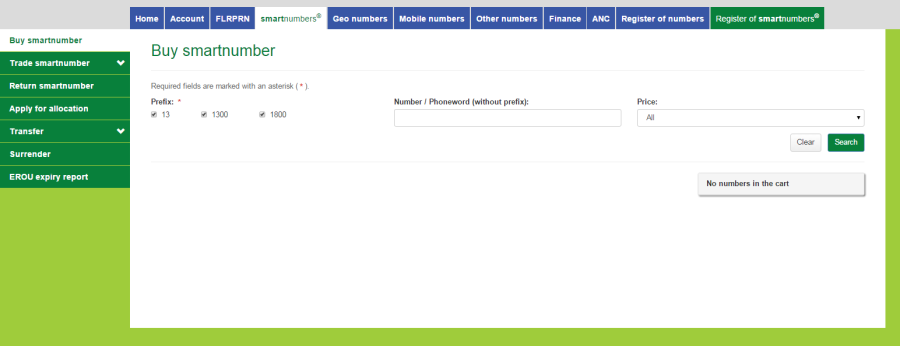
Tick the Prefix checkboxes for the numbers you want to find:
13 for numbers that have call costs shared by the caller and the business
1300 for numbers that have call costs shared by the caller and the business
1800 for numbers that have calls paid for by the business owner of the number.
Filter search results by price by selecting a price range from the Price dropdown menu.
To find all available smartnumbers within the filter criteria click on Search. You can also type a number or phoneword (or part thereof) in the Number / Phoneword (without prefix) box and click on Search. The search results will display the price of the available numbers or will show 'no records found' if there are no matches.

Note: If multiple rows are displayed, click on Next to navigate through them. You can also change the number of rows displayed per page to 25, 50 or 100. You can also sort by column headers.
Note: If your preferred smartnumber does not display, you can adjust the status filter and select All from the Status dropdown menu to expand your search to all smartnumbers.
Only available smartnumbers can be purchased. Smartnumbers that are assigned or allocated are not available for purchase as the enhanced rights of use (EROU) to these numbers are already held.
If your preferred number does not display at all, it may not be a smartnumber.
Select the Search for any number tab to search all numbers.
Click on Apply in the Action column for each number you want to buy. Selected numbers will display in the cart.

Note: To remove all numbers in the cart, click on Empty cart. To remove a specific number from the cart, click on X next to the number.
Click on Next. The 'Buy smartnumber review' page will display.

Review your order, including numbers selected and the total price.
Note: If you need to alter details, click on Back and make changes as required.
You are required to read and accept the terms and conditions under Acknowledgements by ticking the checkbox.
Click Submit. The 'Buy smartnumber confirmation' page will display.

The ‘Buy smartnumber confirmation’ page provides the details for paying by BPay or Electronic Funds Transfer — these are also provided on your invoice.
You can also click on Pay by credit card if you wish to secure your smartnumber immediately (refer to Pay now below).
Note: The numbers you have selected will be available for other parties to purchase until full payment is received. Only upon full payment are numbers allocated.
Click on Back to cancel paying, or click Pay by credit card to proceed. The ANZ eGate payment gateway will display.
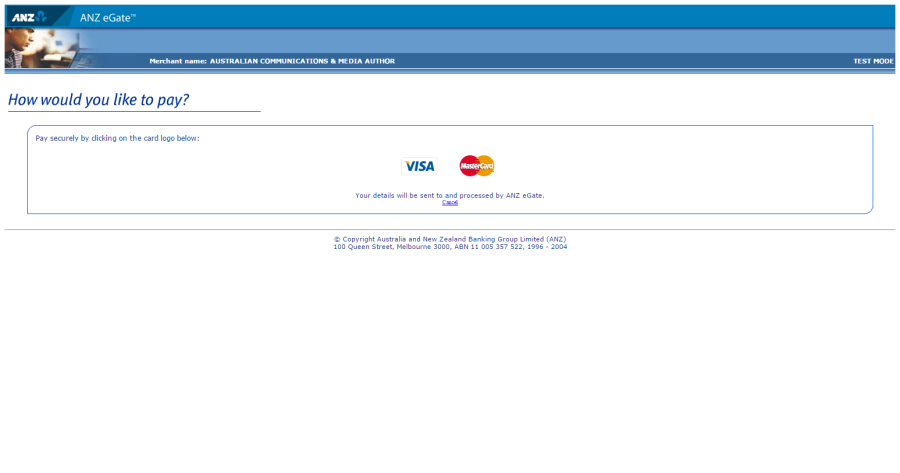
Click on the appropriate credit card logo (VISA or Mastercard).
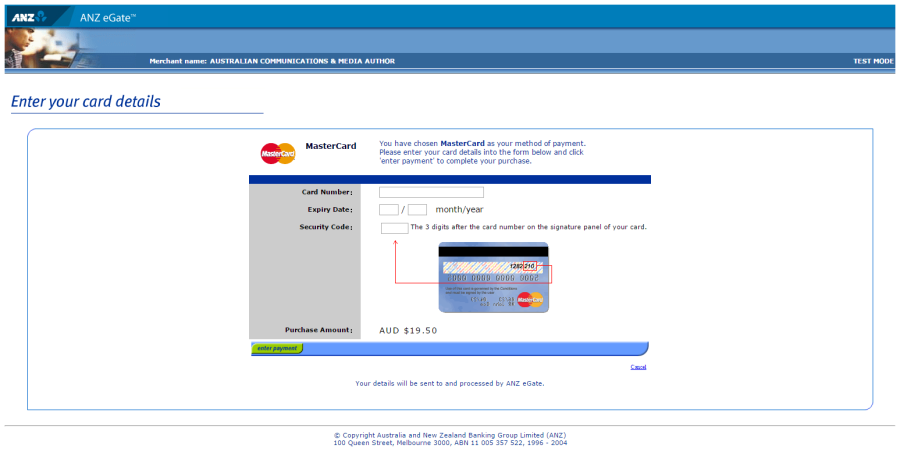
Enter your credit card number, expiry date and security code.
Review your purchase amount.
Note: If you want to cancel the credit card payment, click on Cancel — you will be redirected from the ANZ eGate to the Numbering system.
Login and select theFinance tab to access your invoice so that you can access the payment options again.
Note: Any numbers you have selected will be available for other parties to purchase until full payment is received. Numbers are allocated only after full payment is made.
Click on Enter payment. The ANZ eGate will process the payment.
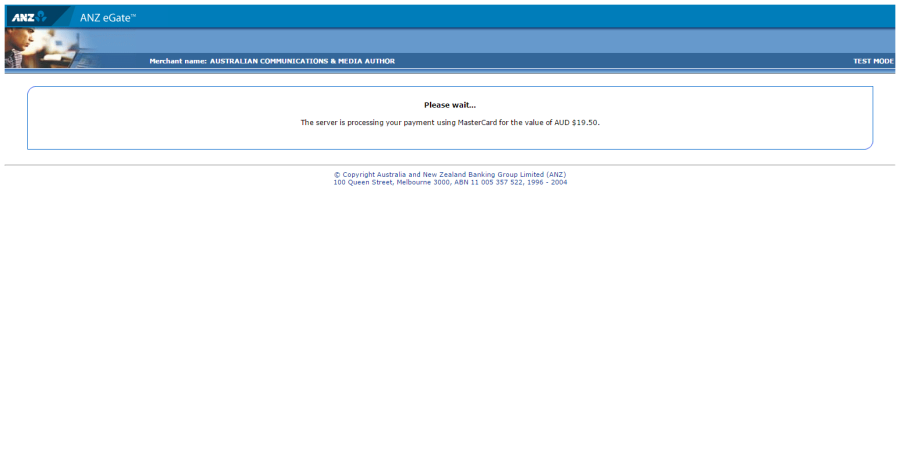
Upon payment approval you are redirected from the ANZ eGate to the Numbering system.