Select the CSP tab in the Numbering system.
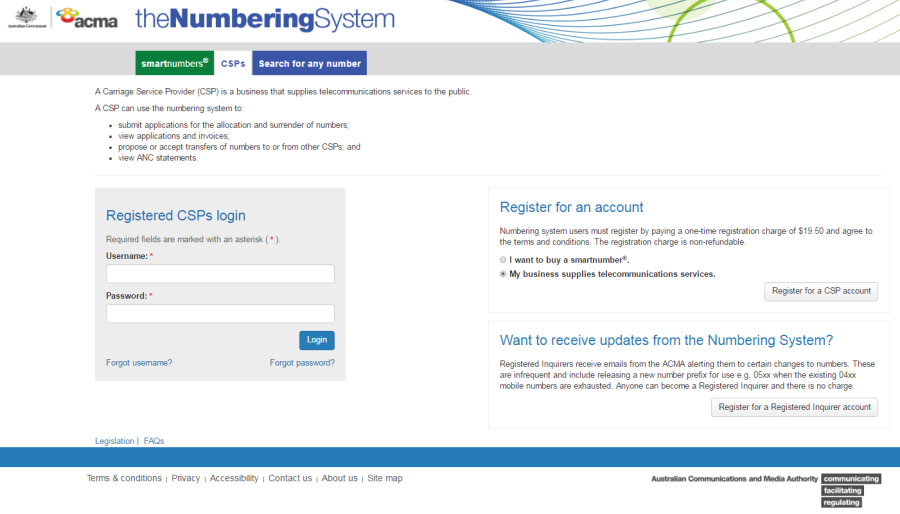
Login with your username and password in the Registered CSPs login box. The 'Dashboard' page will display.
This topic describes how to:
The following describes how to create a transfer offer to transfer selected smartnumbers.
Select the CSP tab in the Numbering system.
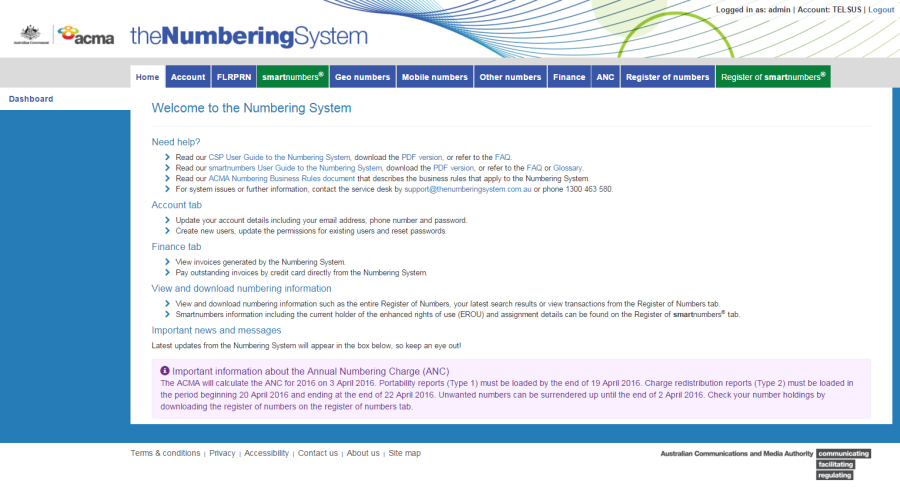
Login with your username and password in the Registered CSPs login box. The 'Dashboard' page will display.
Select the smartnumbers tab. The 'Buy smartnumber' page will display.
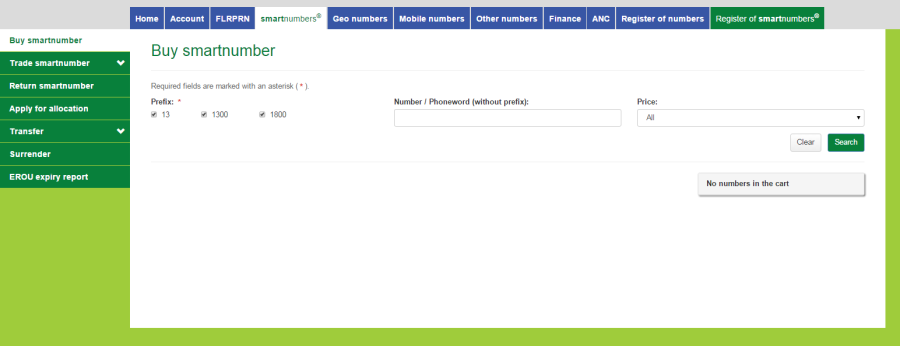
From the Transfer tab's menu select Create offer. The 'Transfer offer' page will display.
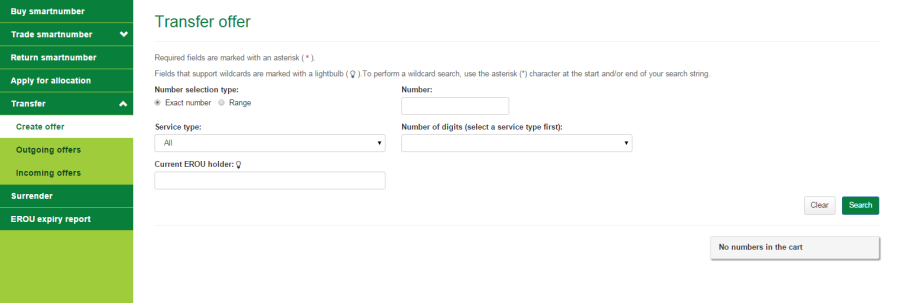
Select a Number selection type option — either Exact Number or Range.
Exact Number
Type the smartnumber in the Number box.
Range
Type the start of the number range in the Number from box and type the end of the number range in the Number to box.
If you are not searching for an exact number, you can apply two filters for the search results:
Select the number services type from the Service type dropdown menu — either Freephone or Local rate or All for both.
Type the EROU holder in the Current EROU holder box.
Click Search. The search results will display.
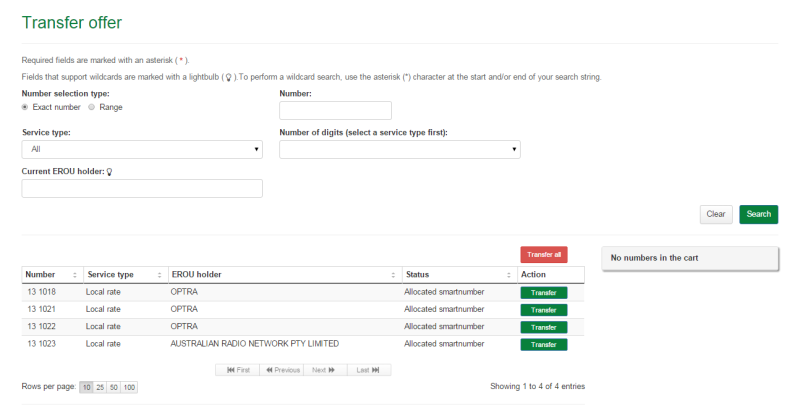
Note: If multiple rows are displayed, click on Next to navigate through them. You can also change the number of rows displayed per page to 25, 50 or 100. You can also sort by column headers.
Note: You can click Clear to redo your search.
Click on Transfer in the Action column of a specific smartnumber to add to the transfer offer. The number is added to the cart as a Transfer.
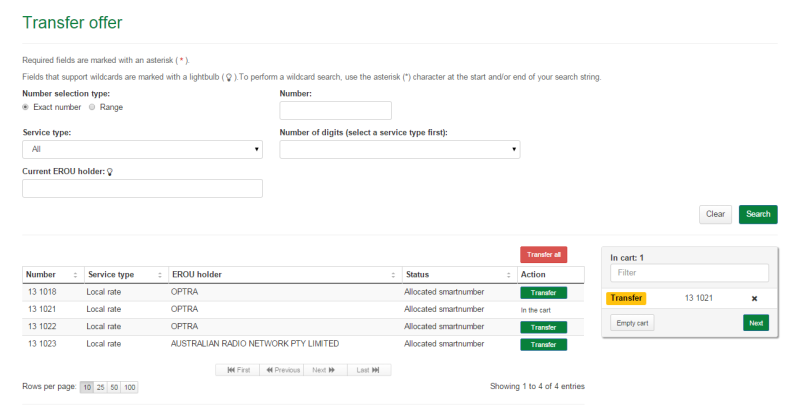
Note: To remove all numbers in the cart, click on Empty cart. To remove a specific number from the cart, click on X next to the number.
Click on Next. The 'Transfer offer review' page will display.
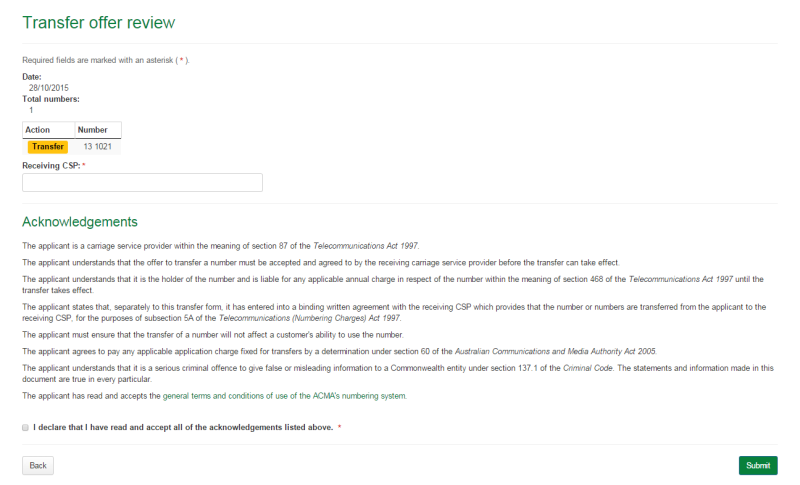
Review your transfer offer smartnumbers.
Note: If you need to alter details, click on Back and make changes as required.
Type the receiving CSP in the Receiving CSP box.
You are required to read and accept the terms and conditions under Acknowledgements by ticking the checkbox.
Click Submit. The 'Transfer offer confirmation' page will display.
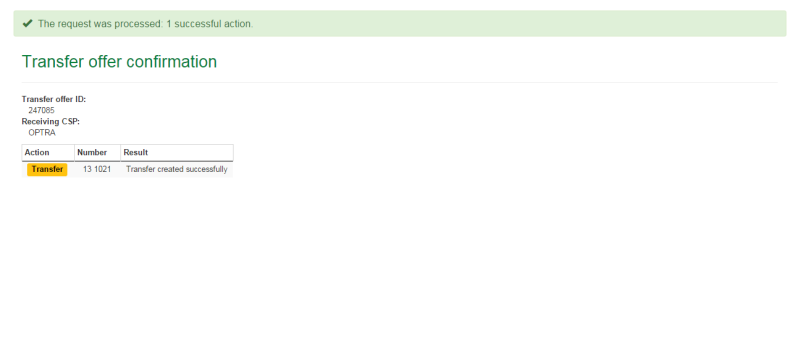
The transfer offer of the selected smartnumbers is created and its transfer offer ID is displayed.
The following describes how to cancel smartnumbers in outgoing trade offers.
Select the CSP tab in the Numbering system.
Login with your username and password in the Registered CSPs login box. The 'Dashboard' page will display.
Select the smartnumbers tab. The 'Buy smartnumber' page will display.
From the Transfer tab's menu select Outgoing offers. The 'Outgoing transfer offers' page will display
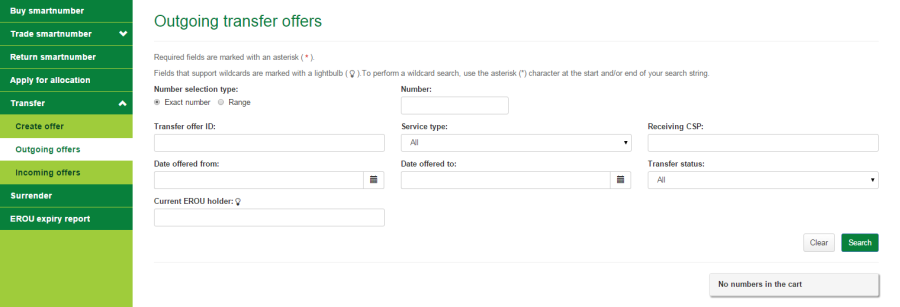
Search for smartnumbers in outgoing transfer offers using search filters:
To filter search results to a specific number: select the Number selection type option of Exact number and type a number (or part thereof) in the Number box.
To filter search results to a range of numbers: select the Number selection type option of Range and type the start of the number range in the Number from box and the end of the number range in the Number to box.
To filter search results to numbers in a specific transfer offer ID: type the ID in the Transfer offer ID box.
To filter search results to a service type (Freephone or Local rate): select the service type from the Service type dropdown menu.
To filter search results to a receiving CSP: type their name in the Receiving CSP box.
To filter search results to a date offered range: select the start date using the Date offered from dropdown calendar and select the end date using the Date offered to dropdown calendar.
To filter search results to a transfer offer status: select a status from the Transfer status dropdown menu.
To filter search results to current EROU holder: type their name in the Current EROU holder box.
Click Search. The search results will display.
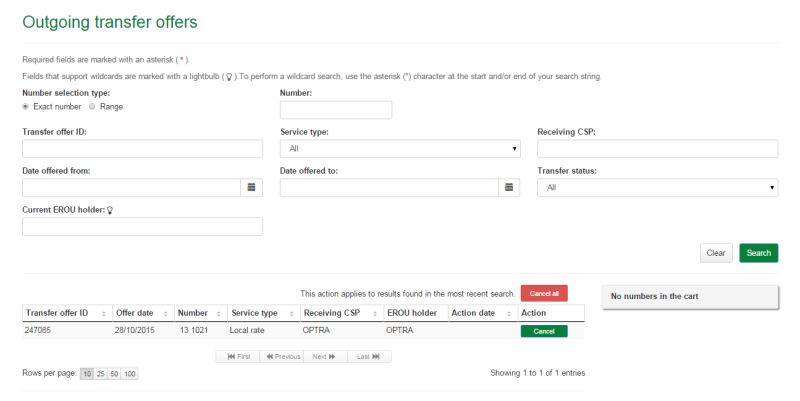
Note: If multiple rows are displayed, click on Next to navigate through them. You can also change the number of rows displayed per page to 25, 50 or 100. You can also sort by column headers.
Note: You can click Clear to redo your search.
Click on Cancel in the Action column of a specific smartnumber to cancel it from an outgoing transfer offer. The number is added to the cart as a Cancel.
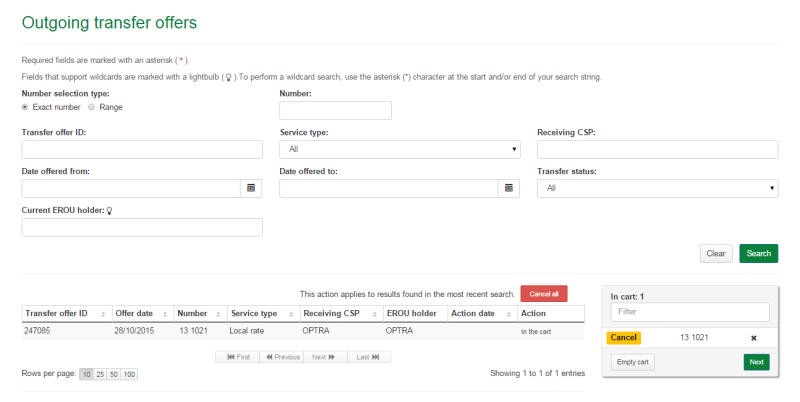
Note: To add all numbers in the search results to the cart as Cancel, click on Cancel all.
Note: To remove all numbers in the cart, click on Empty cart. To remove a specific number from the cart, click on X next to the number.
Click on Next. The 'Cancel outgoing transfer offers review' page will display.
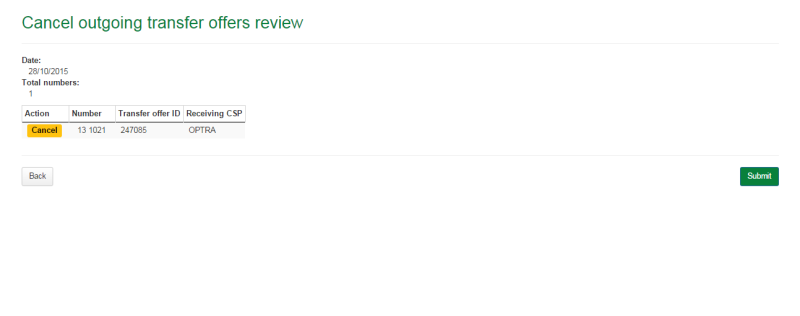
Review your cancel transfer offer smartnumbers.
Note: If you need to alter details click on Back and make changes as required.
Click Submit. The 'Cancel outgoing transfer offers confirmation' page will display.
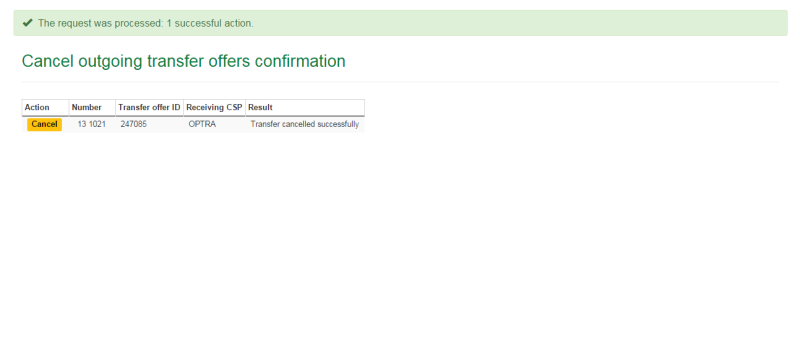
The selected smartnumbers are cancelled from their outgoing transfer offers.
The following describes how to accept and/or reject smartnumbers in incoming transfer offers.
Select the CSP tab in the Numbering system.
Login with your username and password in the Registered CSPs login box. The 'Dashboard' page will display.
Select the smartnumbers tab. The 'Buy smartnumber' page will display.
From the Transfer tab's menu select Incoming offers. The 'Incoming transfer offers' page will display
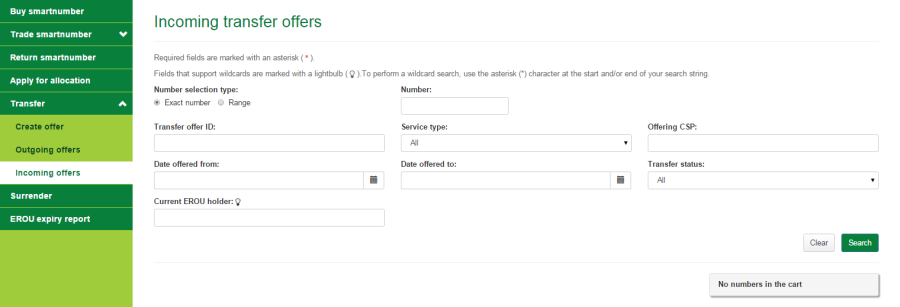
Search for smartnumbers in incoming transfer offers using search filters:
To filter search results to a specific number: select the Number selection type option of Exact number and type a number (or part thereof) in the Number box.
To filter search results to a range of numbers: select the Number selection type option of Range and type the start of the number range in the Number from box and the end of the number range in the Number to box.
To filter search results to numbers in a specific transfer offer ID: type the ID in the Transfer offer ID box.
To filter search results to a service type (Freephone or Local rate): select the service type from the Service type dropdown menu.
To filter search results to an offering CSP: type their name in the Offering CSP box.
To filter search results to a date offered range: select the start date using the Date offered from dropdown calendar and select the end date using the Date offered to dropdown calendar.
To filter search results to a transfer status: select a status from the Transfer status dropdown menu.
To filter search results to current EROU holder: type their name in the Current EROU holder box.
Click Search. The search results will display.
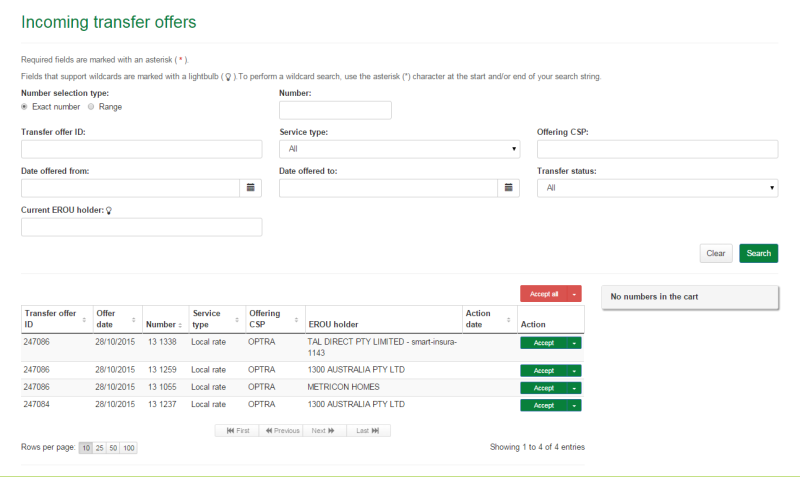
Note: If multiple rows are displayed, click on Next to navigate through them. You can also change the number of rows displayed per page to 25, 50 or 100. You can also sort by column headers.
Note: You can click Clear to redo your search.
Accept or reject smartnumbers in incoming transfers offers:
Accept
Click on Accept in the Action column of a specific smartnumber to accept it from its incoming transfer offer. The number will be added to the cart as an Accept.
Reject
Select Reject from the Accept dropdown menu in the Action column of a specific smartnumber to reject it from its incoming transfer offer. The number will be added to the cart as a Reject.
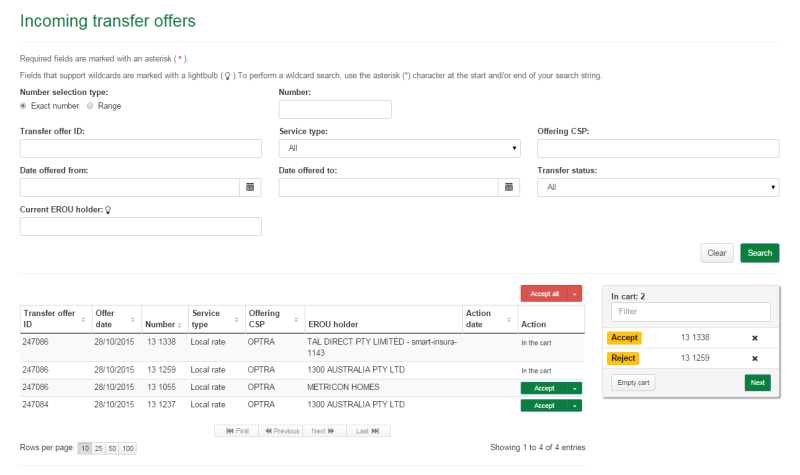
Note: To add all numbers in the search results to the cart as Accept click on Accept all.
Note: To add all numbers in the search results to the cart as Reject select Reject all from the Accept all dropdown menu.
Note: To remove all numbers in the cart click on Empty cart. To remove a specific number from the cart click on X next to the number.
Click on Next. The 'Assess incoming transfer offers review' page will display.
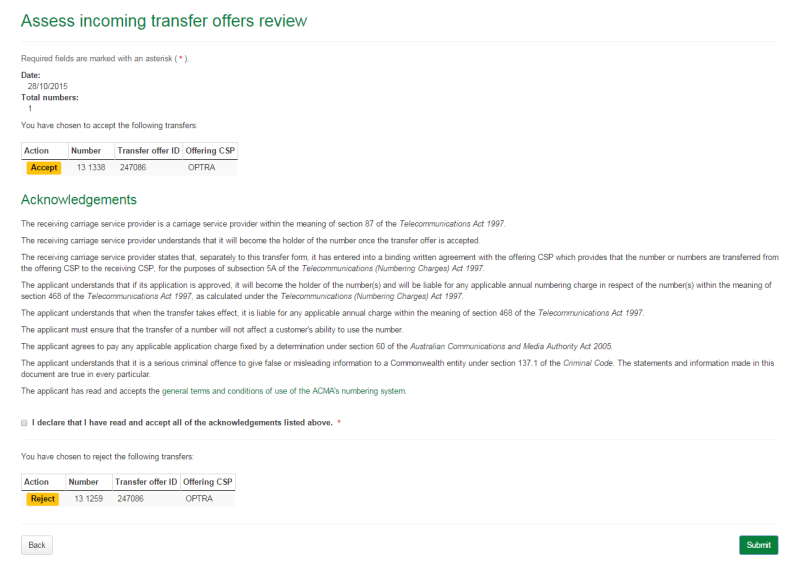
Review your Accept and/or Reject smartnumbers.
You are required to read and accept the terms and condition under Acknowledgements by ticking the checkbox.
Note: If you need to alter details click on Back and make changes as required.
Click Submit. The 'Assess incoming transfer offers confirmation' page will display.
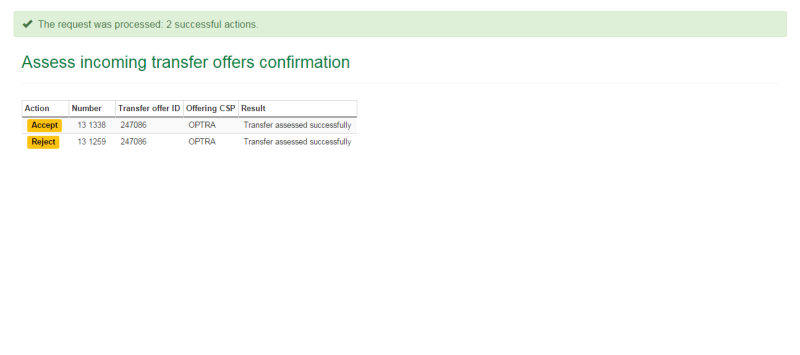
The selected Accept smartnumbers are accepted from their incoming transfer offer and the selected Reject smartnumbers are rejected from their incoming transfer offer.